Skip to content
Book a call

Matterport Capture App

1
  • How to Login To Matterport Capture App

Helpful Tips & Guides

6
  • Troubleshoot Common Error Messages
  • Which iPad to Choose ?
  • How to Scan Floors in adidas Store? (General)
  • How To Mark Mirrors in adidas Store?
  • How to Capture a 360° Exterior Photo of an adidas Store ?
  • How to Create a New Job and Name It

Notes and Collaboration

2
  • How to add Notes in an adidas Virtual Tour?
  • How to Manage Notes?

Scanning using iPad or iPhone

7
  • Login To Matterport Capture App
  • How to Create a New Job and Name It
  • How to Scan Using an iPad or iPhone ?
  • How To Mark Mirrors in adidas Store?
  • How to Capture a 360° Exterior Photo of an adidas Store ? (iPad)
  • How to Scan Floors in adidas Store?
  • How to Fix Common Problems When Scanning with iPad?

Scanning using Ricoh Camera

8
  • Login To Matterport Capture App (Ricoh)
  • How to update a firmware on Ricoh camera?
  • How to Create a New Job and Name It
  • How to Connect a Ricoh Theta Z1 Camera to an iPad?
  • How to Scan Using a Ricoh Theta Z1?
  • How To Mark Mirrors in adidas Store?
  • How to Capture a 360° Exterior Photo of an adidas Store ? (Ricoh)
  • How to Scan Floors in adidas Store? (Ricoh)

Tags and Hotspots

1
  • How to Add Tags in Adidas store?
View Categories
  • Home
  • Adidas
  • Scanning using Ricoh Camera
  • How to Scan Using a Ricoh Theta Z1?

How to Scan Using a Ricoh Theta Z1?

info@liminastudios.com
Updated on October 28, 2025

4 min read

What You Need #

  • Ricoh Theta Camera Z1 updated to latest version. 
  • Matterport Capture App (installed and fully updated on iPad)
  • iPad ( updated to latest iOS version)
  • Stable Tripod (for precise scanning)
  • Wi-Fi Enabled (to connect your camera)

Step 1 : Connect your iPad to Ricoh Theta camera #

  1. Please go through the below link for connecting your iPad with Ricoh Theta camera:
    Connect iPad to Ricoh Theta Camera
  2. If already connected , go to Step 2.

Step 2 : Create New Capture Job #

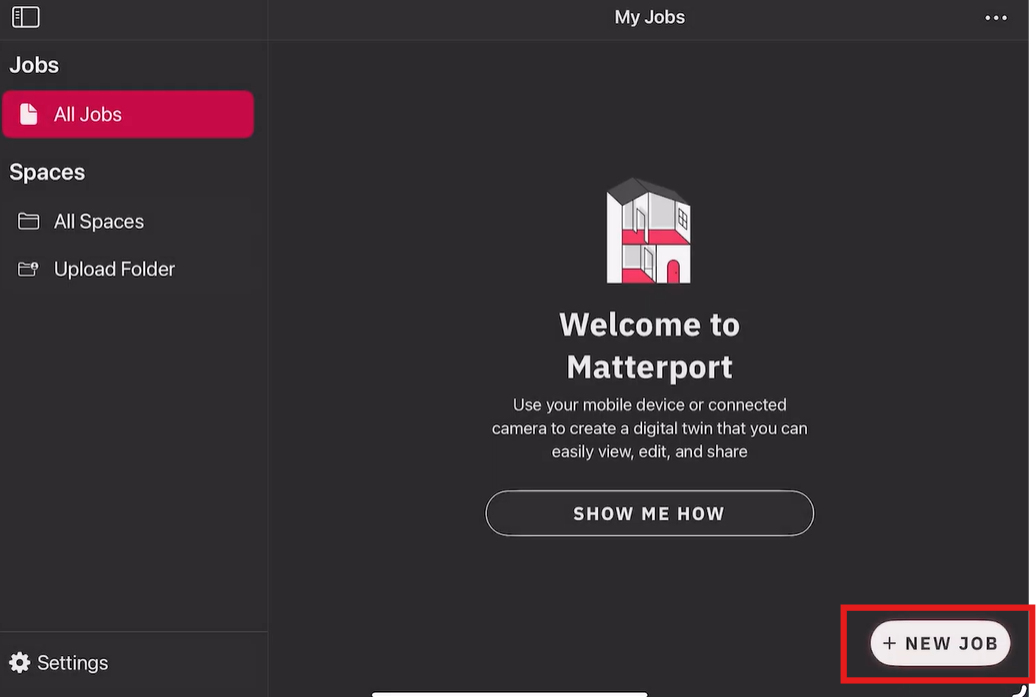
  • Tap the “+” icon to start a new project.  
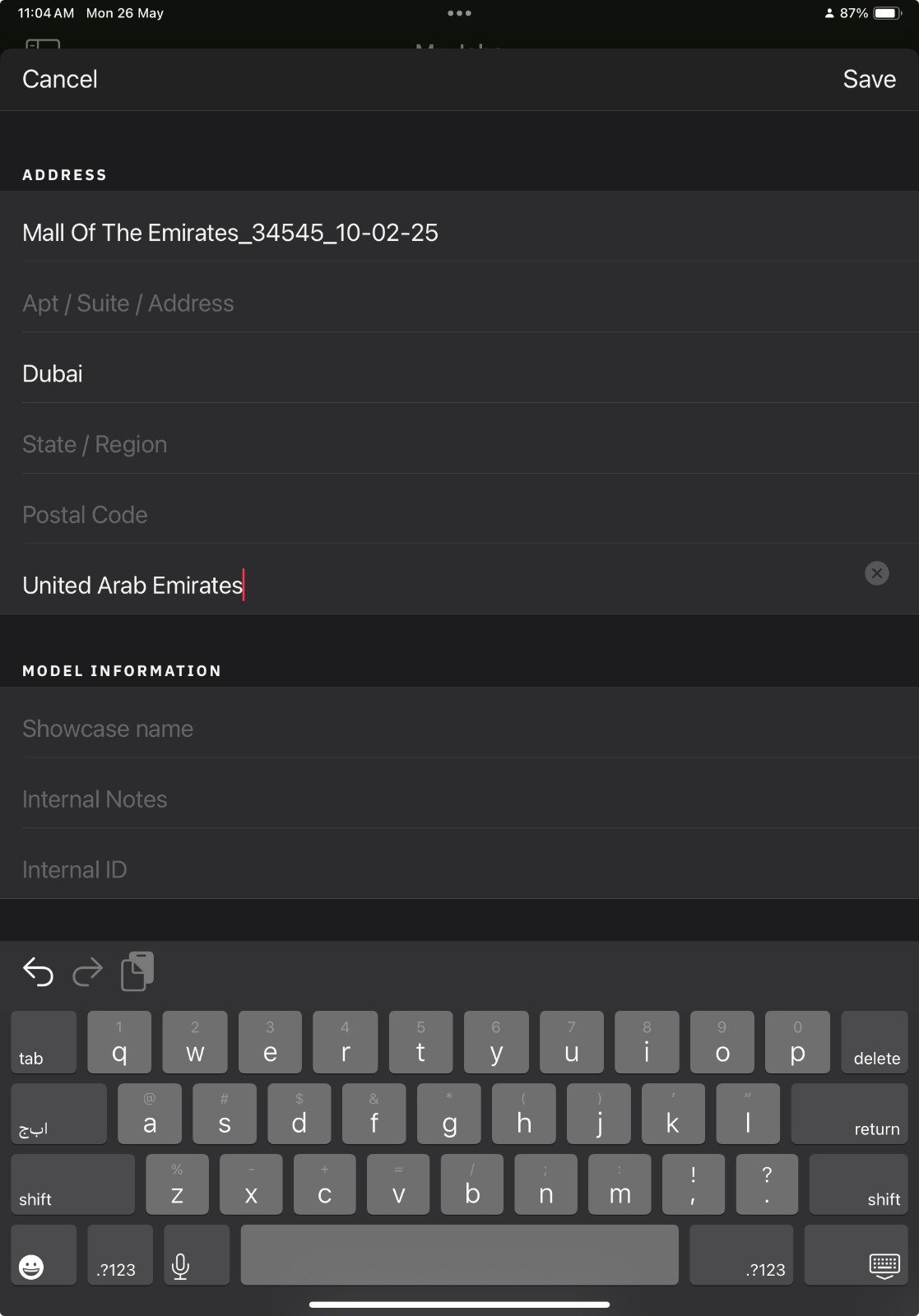
  • Enter the store details as the format below : 
    1. Name of the store_Store Code_Date ( dd-mm-yy )
    2. City/ Locality
    3. Country
  • Example : 

    1. Mall of the Emirates_34545_10-02-25

    2. Dubai

    3. United Arab Emirates

  • final image
    Tap “Save” to create the new job

Step 3 : Position Your Camera Correctly #

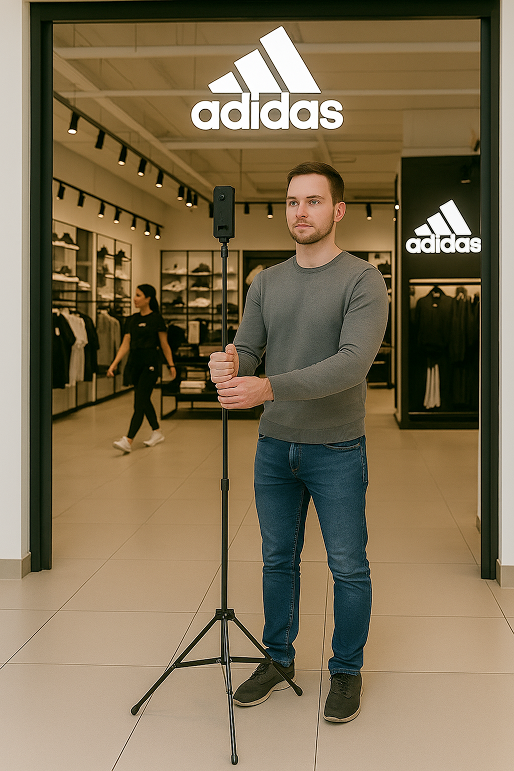
  1. Place your Ricoh Theta camera at the entrance of adidas store.May 16, 2025, 12_56_27 PM 1
  2. The height of tripod should be around 140 cm
  3. Make sure the camera is steady and level to avoid distorted scans.
  4. Stand out of the camera’s view before capturing (hide behind a wall or door).
  5. Avoid having moving objects or people in the frame, as it can cause blurry scans.

Good lighting improves scan quality, so try to capture in well-lit environments.

Step 4 : Capture a 3D Scan #

  1. Open the Matterport Capture App on your iPad.
  2. Make sure your camera is connected to the app.
  3. Always make sure to select ” 3D Scan” from the options.
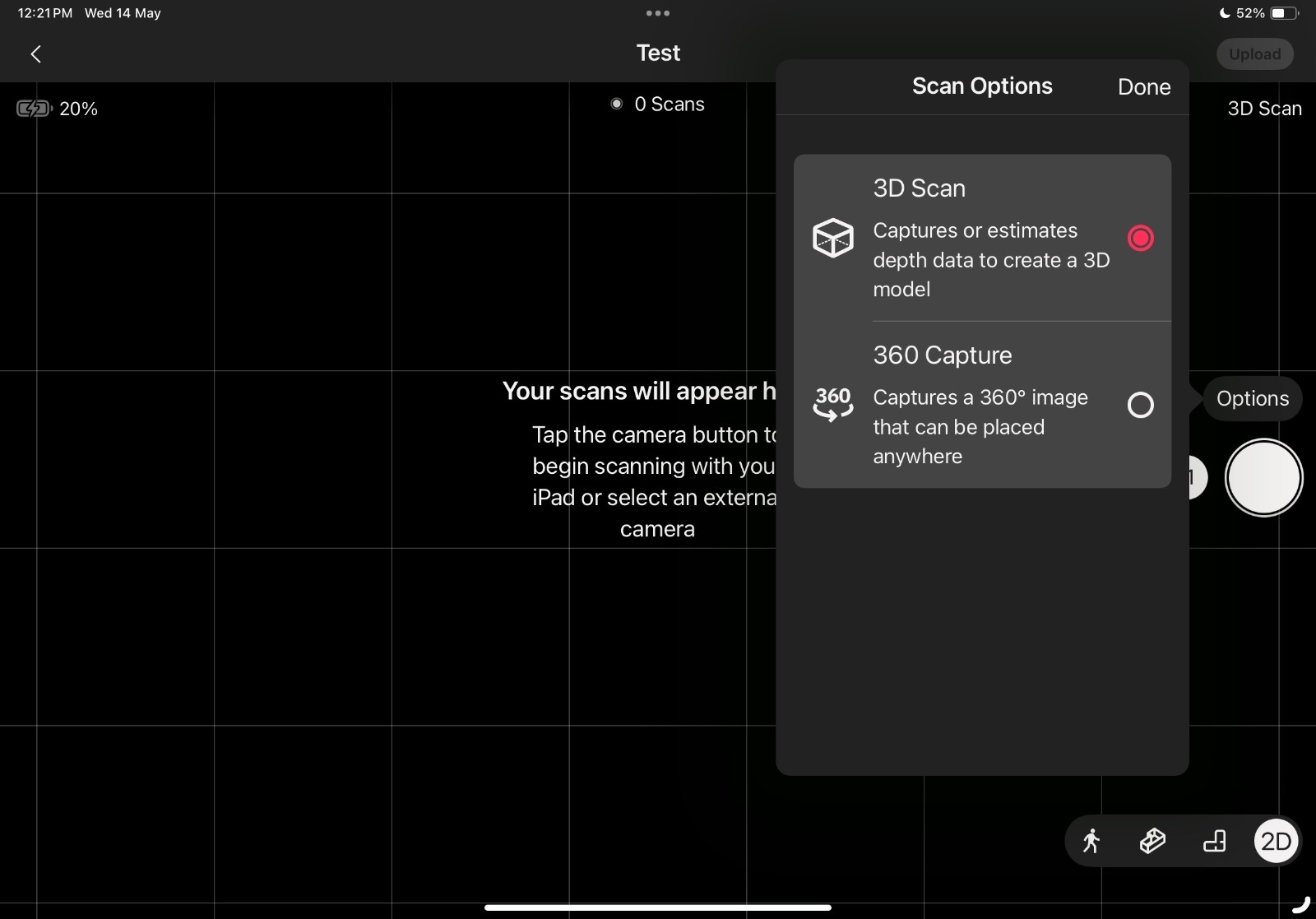
  4. Tap on the Capture button to start scanning.
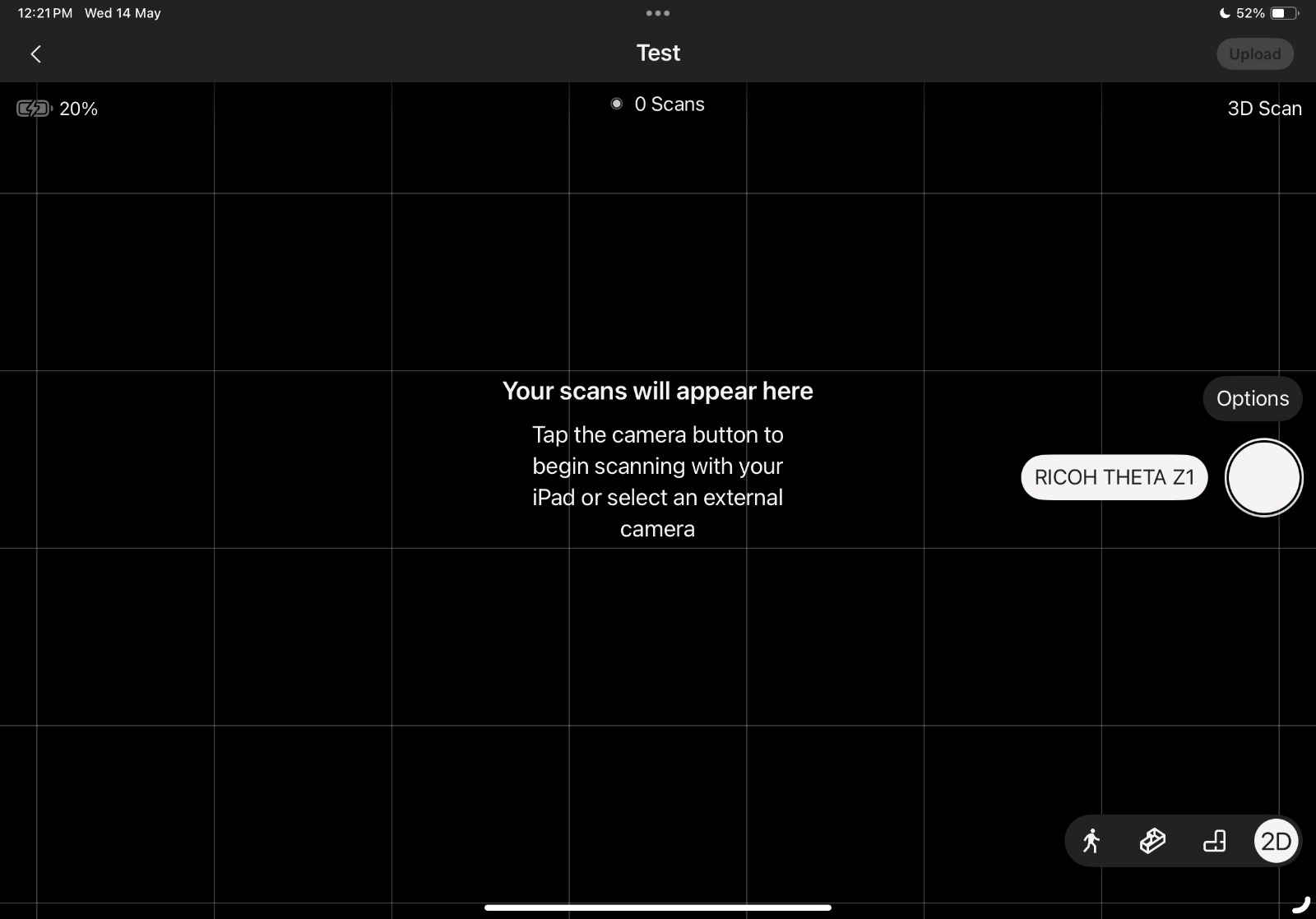
  5. Wait for a few seconds while the camera processes the scan.
  6. Once the scan appears in the app, move the camera to the next position and repeat the process.

Step 5: Scan Point Distance: #

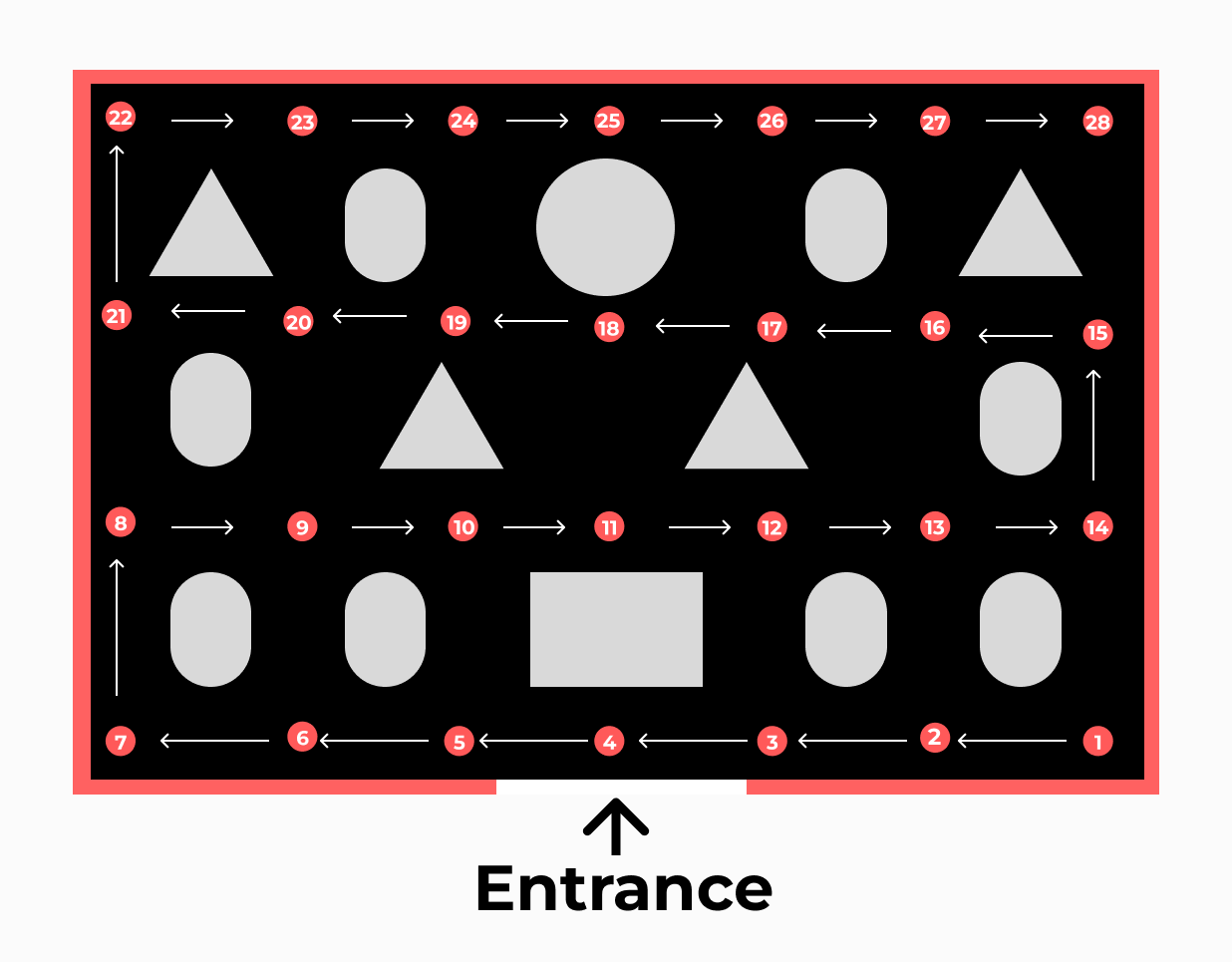
It is crucial to maintain a scan point distance of 1.5 meters to 2.5 meters, not more.

For example, the floor plan below shows 28 scan points neatly aligned throughout the store, with the starting scan point “ 1 ” positioned in the corner near the entrance.
Step 6: Check Scan Preview: #

After you finish a scan, the Capture app shows you a preview. Always check if the scan points are in the correct place, because sometimes they might not be at the spot as we expected. Look at the preview to see if all scan points are neatly arranged. If a scan point is not where it should be, delete the scan and redo it. Move closer to the previous scan point to improve alignment. If you don’t check and continue scanning, it could affect the accuracy of the entire scan points.

Step 7: Mark Mirrors and Windows #

When you see a mirror in the space , use the app’s tools to mark mirrors and windows.

Step 8: Capture a 360° Exterior Photo #

After completing the scan of the entire adidas store interior —
including marking mirrors and previewing all scans — the final
step is to capture a 360° exterior photo of the exterior of the store.

Click the link below to learn how: How to Capture a 360° Exterior Photo of an adidas Store?

Step 9: Upload Your Scans #

  1. Make sure you have a stable internet connection before uploading.
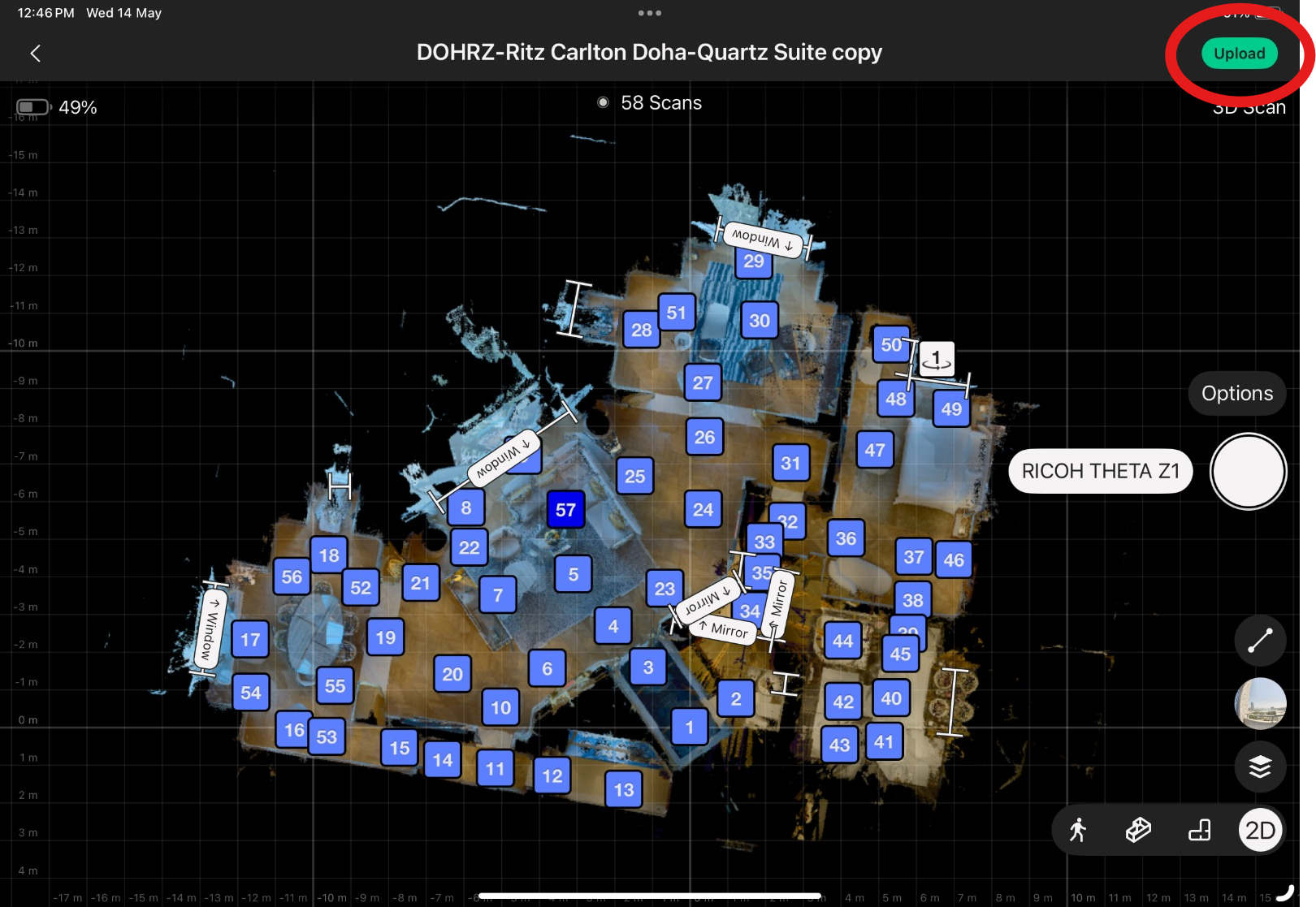
  2. Once you have captured all scans, tap “Upload” to send your scans to the Matterport Cloud.
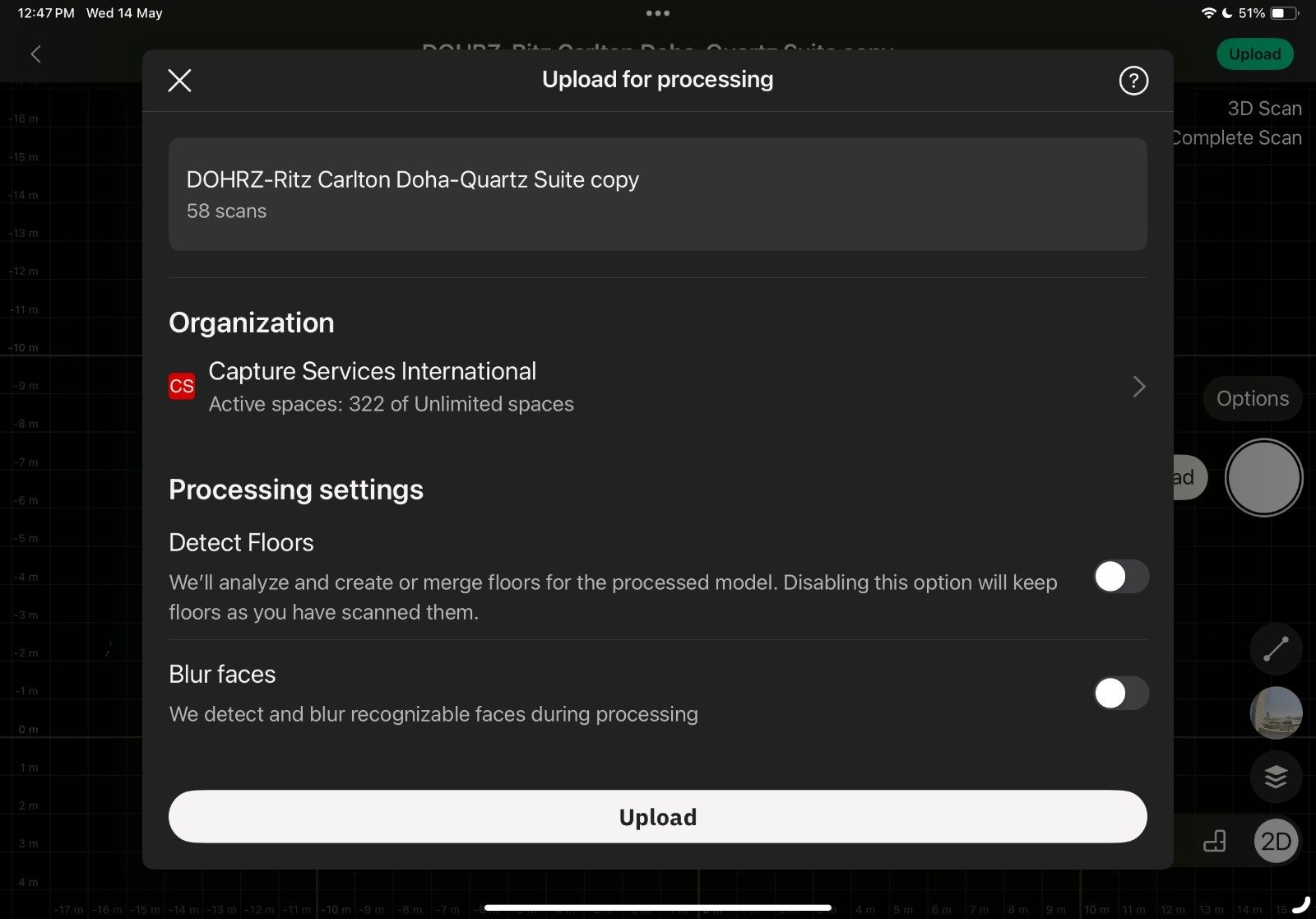
  3. Once the Upload button is clicked, it will navigate to this page, and both options should be turned off.
  4. The percentage indicates the upload progress, and once the upload is complete, a tick appears in the cloud icon.
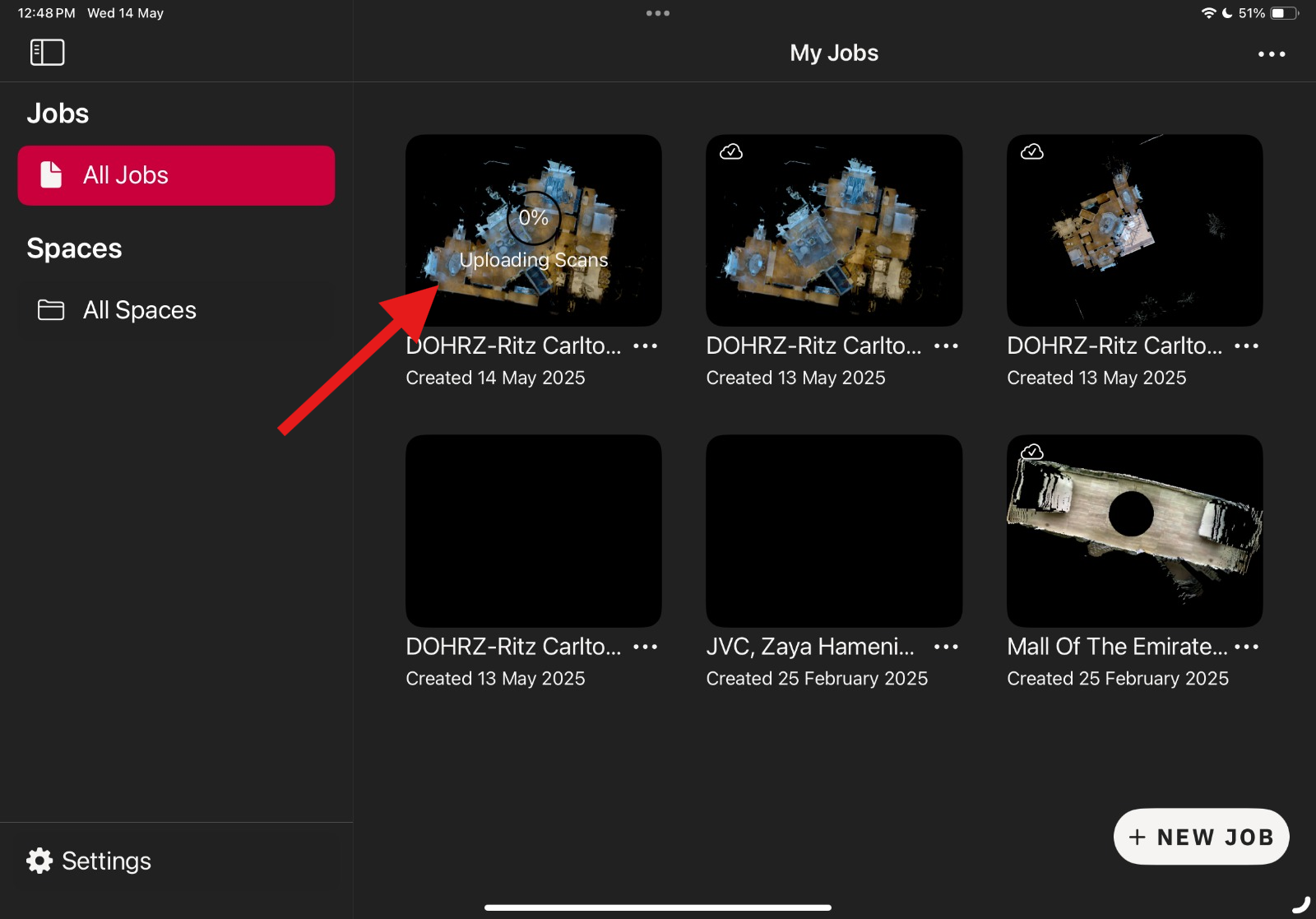
  5. Once you get the tick mark, the scanning job is done .

Troubleshooting Common Issues #

 Camera Not Capturing?

  • Restart both the Ricoh Theta camera and iPhone/iPad.
  • Make sure the camera is fully charged.
  • Check if the Wi-Fi is still connected.

 Blurry or Low-Quality scans?

  • Clean the camera lens with a microfiber cloth before scanning.
  • Try scanning in better lighting.
  • Ensure your camera firmware is updated using the Ricoh Theta app.

Issues with Multiple Scans?

  • Ensure scans are spaced evenly (3-6 feet apart) to avoid misalignment.
  • Avoid capturing too close to mirrors or glass, as they can confuse the system.

Important Tips : #

  1. As soon as you reach or see the stock room door while scanning, keep it open using a door stopper, as shown in the image below, and continue scanning until you finish the stock room.
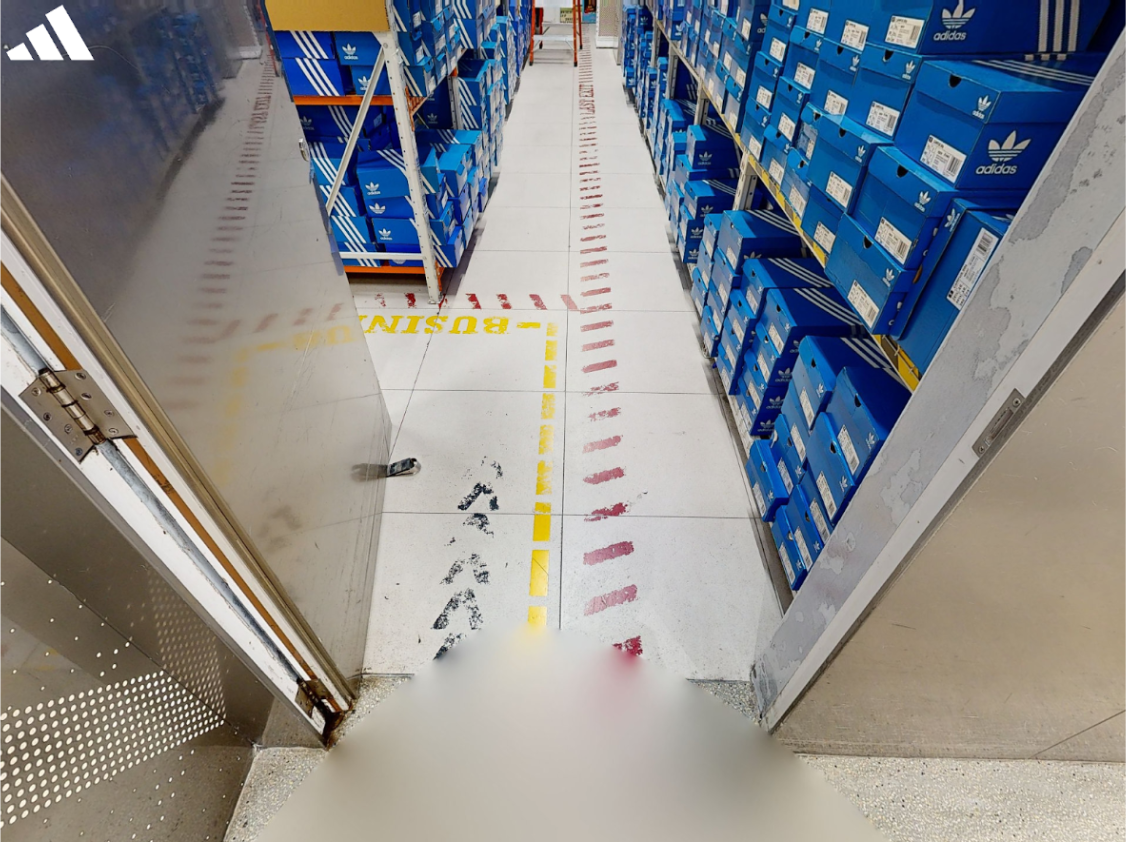
  2. When the mirror becomes visible during scanning, mark it immediately before proceeding to the next scan position. Click here to see “How to Mark mirrors?”

Support #

If you have any issues or questions, please reach out via Live Chat or email us at admin@liminastudios.com

How to Connect a Ricoh Theta Z1 Camera to an iPad?How To Mark Mirrors in adidas Store?

Powered by BetterDocs

Table of Contents
  • What You Need
  • Step 1 : Connect your iPad to Ricoh Theta camera
  • Step 2 : Create New Capture Job
  • Step 3 : Position Your Camera Correctly
  • Step 4 : Capture a 3D Scan
  • Step 5: Scan Point Distance:
  • Step 6: Check Scan Preview:
  • Step 7: Mark Mirrors and Windows
  • Step 8: Capture a 360° Exterior Photo
  • Step 9: Upload Your Scans
  • Troubleshooting Common Issues
  • Important Tips :
  • Support
  • info@liminastudios.com
  • admin@liminastudios.com
  • +971 52 476 4537
Facebook Globe Instagram Phone-alt Linkedin X-twitter Youtube

Copyright © 2025, liminastudios.com