Skip to content
Book a call

Matterport Capture App

1
  • How to Login To Matterport Capture App

Helpful Tips & Guides

6
  • Troubleshoot Common Error Messages
  • Which iPad to Choose ?
  • How to Scan Floors in adidas Store? (General)
  • How To Mark Mirrors in adidas Store?
  • How to Capture a 360° Exterior Photo of an adidas Store ?
  • How to Create a New Job and Name It

Notes and Collaboration

2
  • How to add Notes in an adidas Virtual Tour?
  • How to Manage Notes?

Scanning using iPad or iPhone

7
  • Login To Matterport Capture App
  • How to Create a New Job and Name It
  • How to Scan Using an iPad or iPhone ?
  • How To Mark Mirrors in adidas Store?
  • How to Capture a 360° Exterior Photo of an adidas Store ? (iPad)
  • How to Scan Floors in adidas Store?
  • How to Fix Common Problems When Scanning with iPad?

Scanning using Ricoh Camera

8
  • Login To Matterport Capture App (Ricoh)
  • How to update a firmware on Ricoh camera?
  • How to Create a New Job and Name It
  • How to Connect a Ricoh Theta Z1 Camera to an iPad?
  • How to Scan Using a Ricoh Theta Z1?
  • How To Mark Mirrors in adidas Store?
  • How to Capture a 360° Exterior Photo of an adidas Store ? (Ricoh)
  • How to Scan Floors in adidas Store? (Ricoh)

Tags and Hotspots

1
  • How to Add Tags in Adidas store?
View Categories
  • Home
  • Adidas
  • Tags and Hotspots
  • How to Add Tags in Adidas store?

How to Add Tags in Adidas store?

info@liminastudios.com
Updated on October 24, 2025

2 min read

1. Logging into Portal #

  1. Login to  client portal with the link: Login
  2. Username and password will be provided by us.
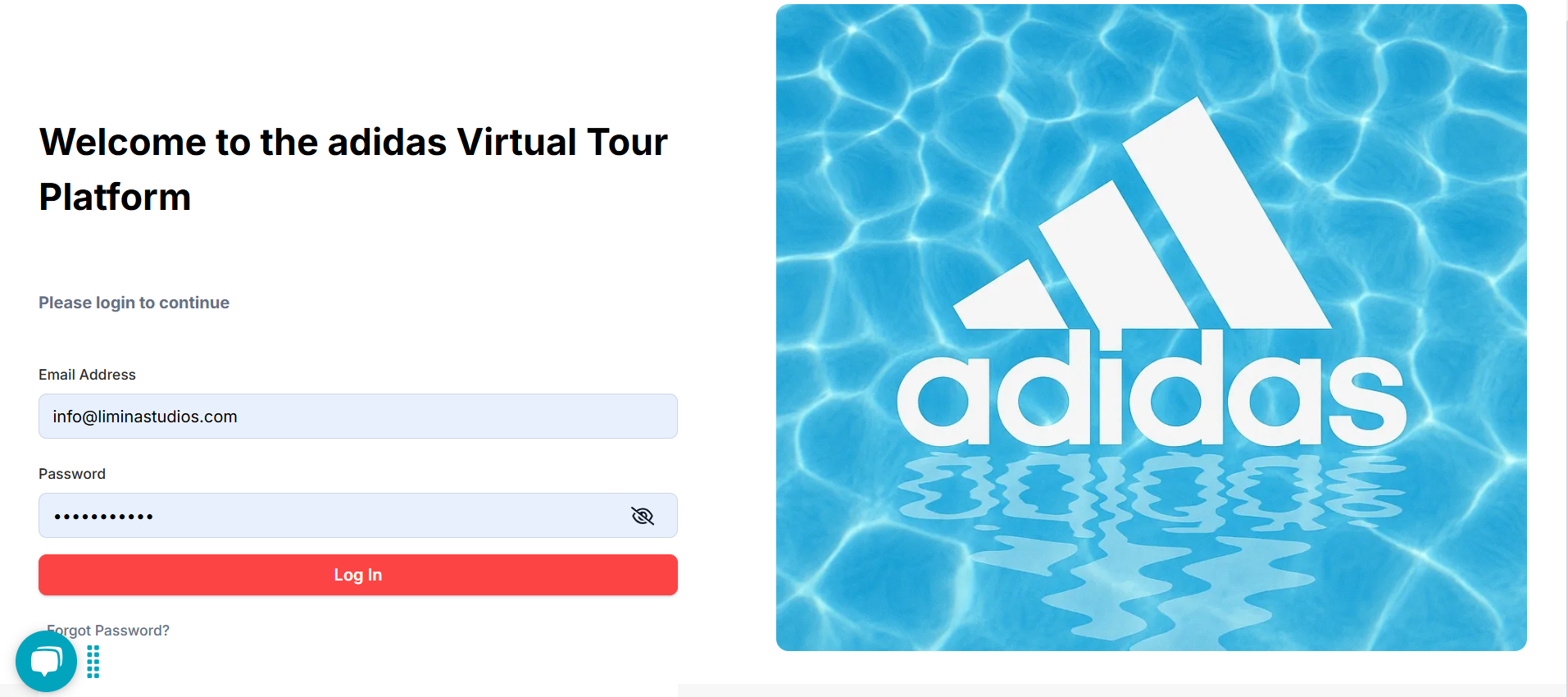
  3. Once logged in, you will see the available spaces
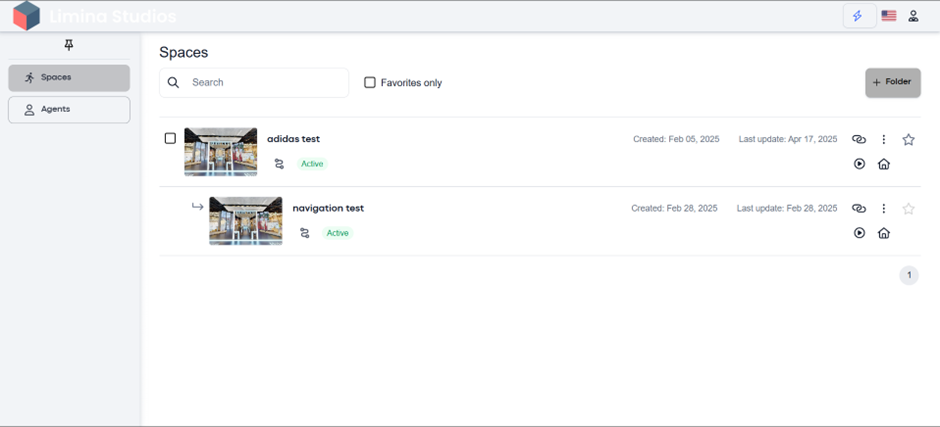
2. Accessing the Workspace #

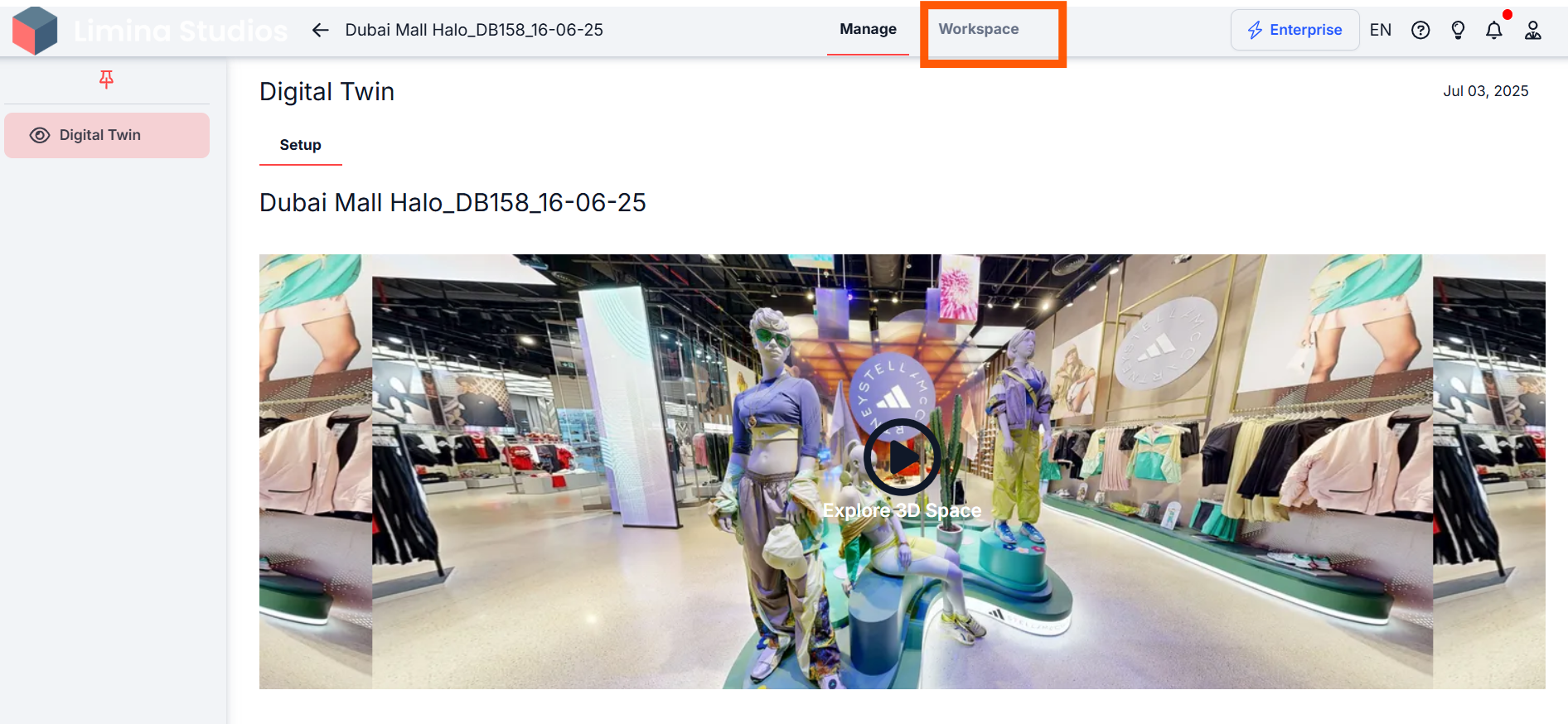
  1. Click on the space where you want to add tags.
  2. Click on ‘Workspace’

3. Adding Tags #

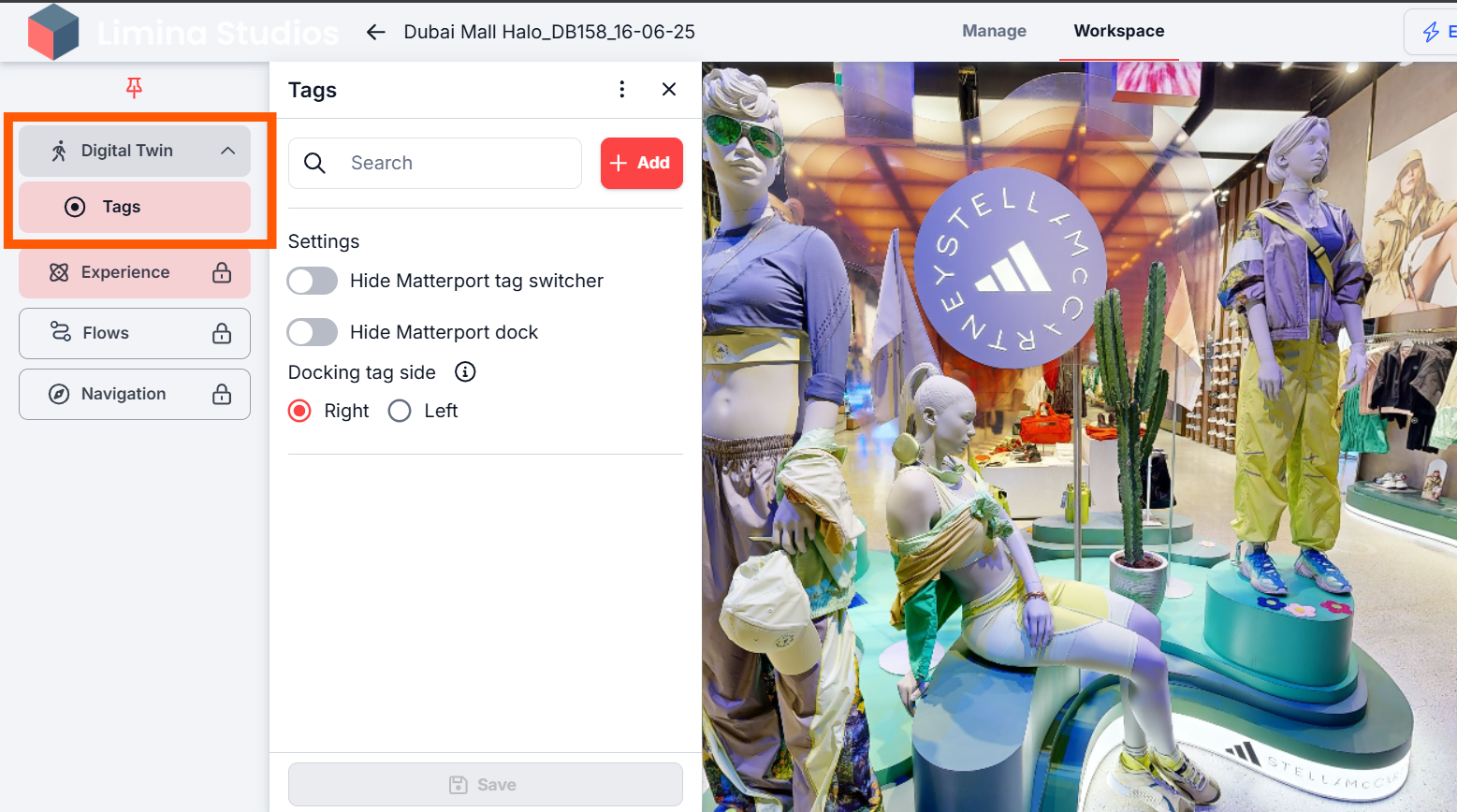
  1. Click on Digital Twin and then “Tags”
  2. Click on the ‘Add’ button to place tags in the virtual space.     
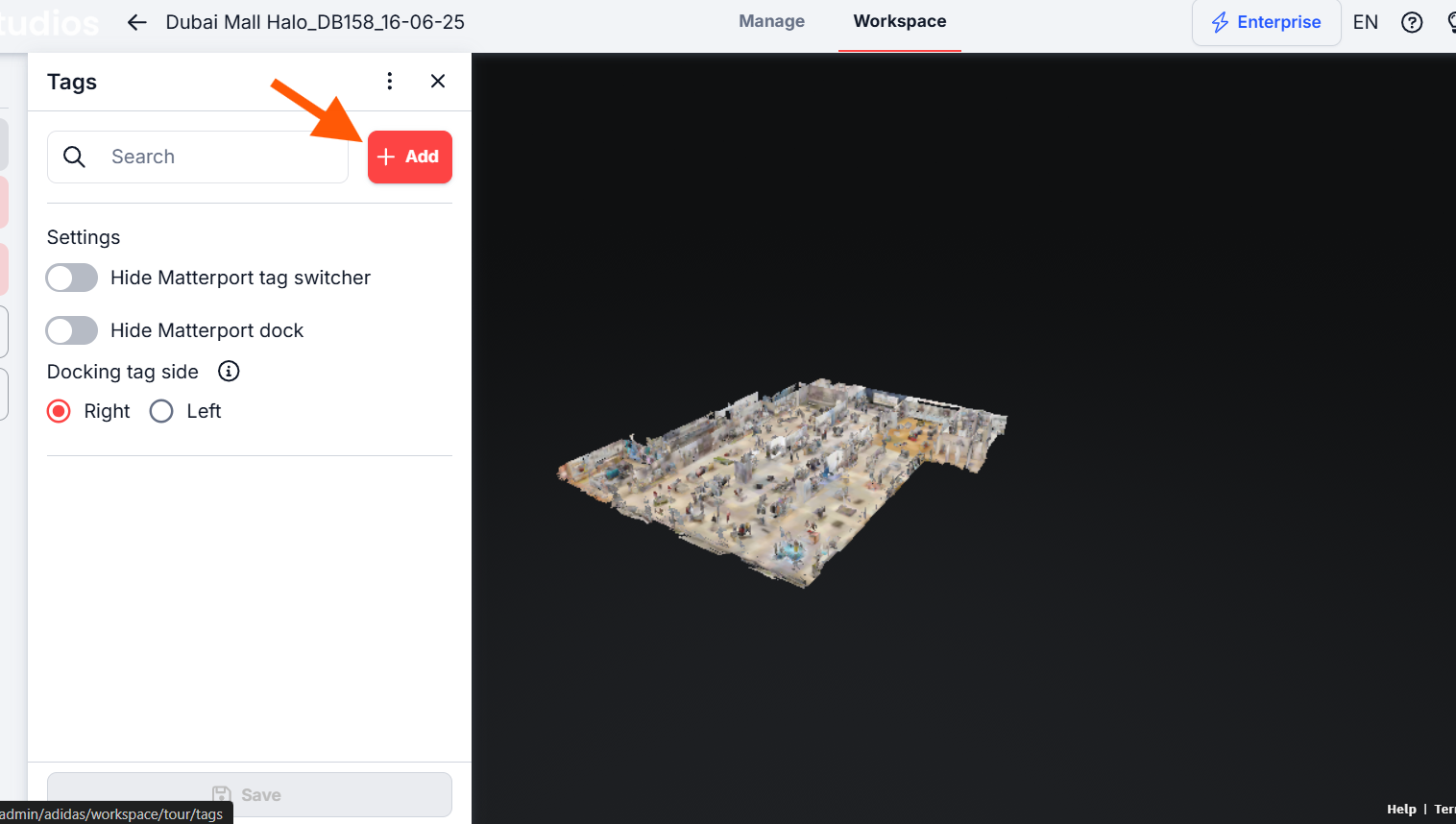
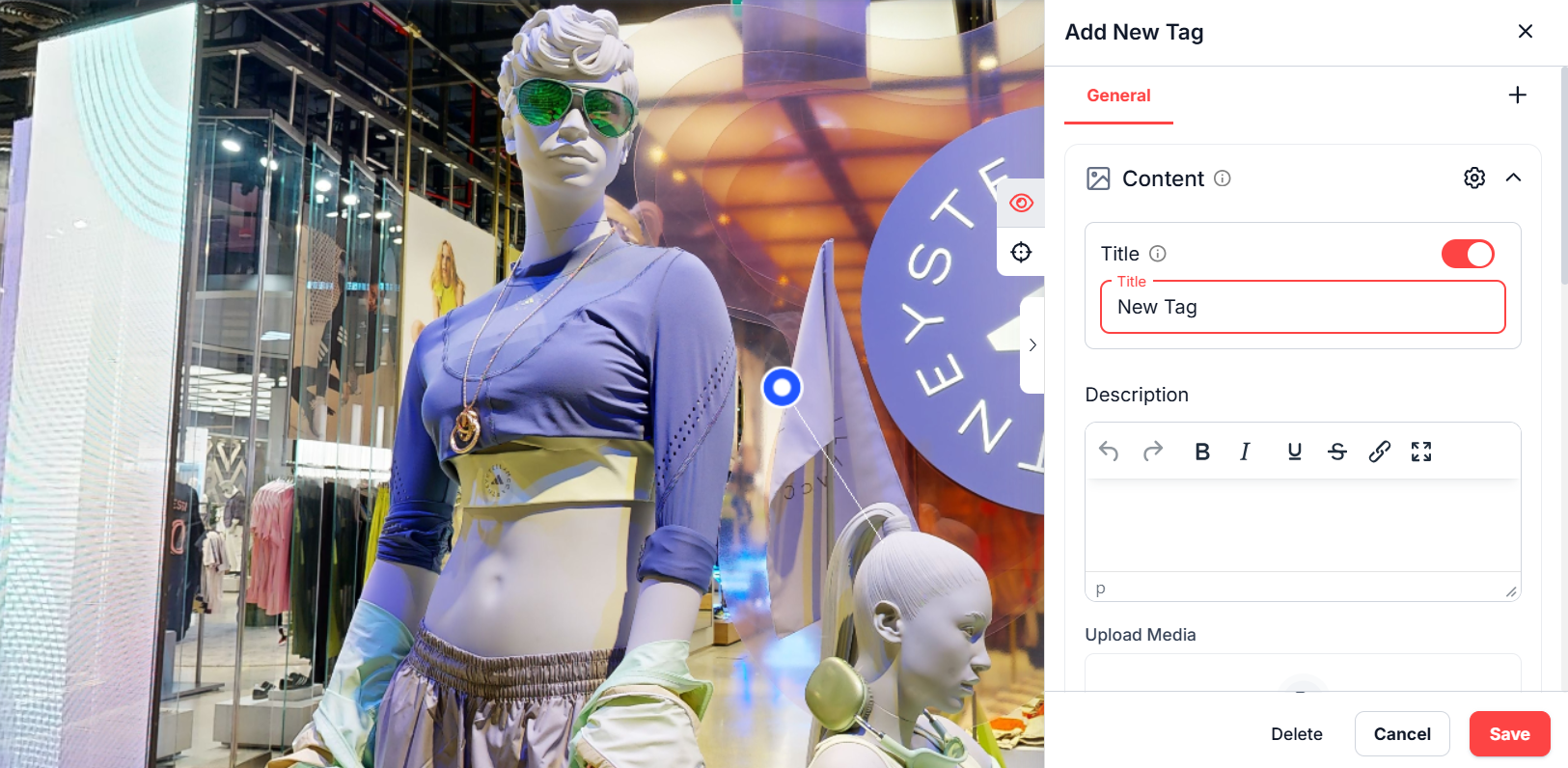
  3. Drag and drop the tag pin anywhere in the virtual tour.
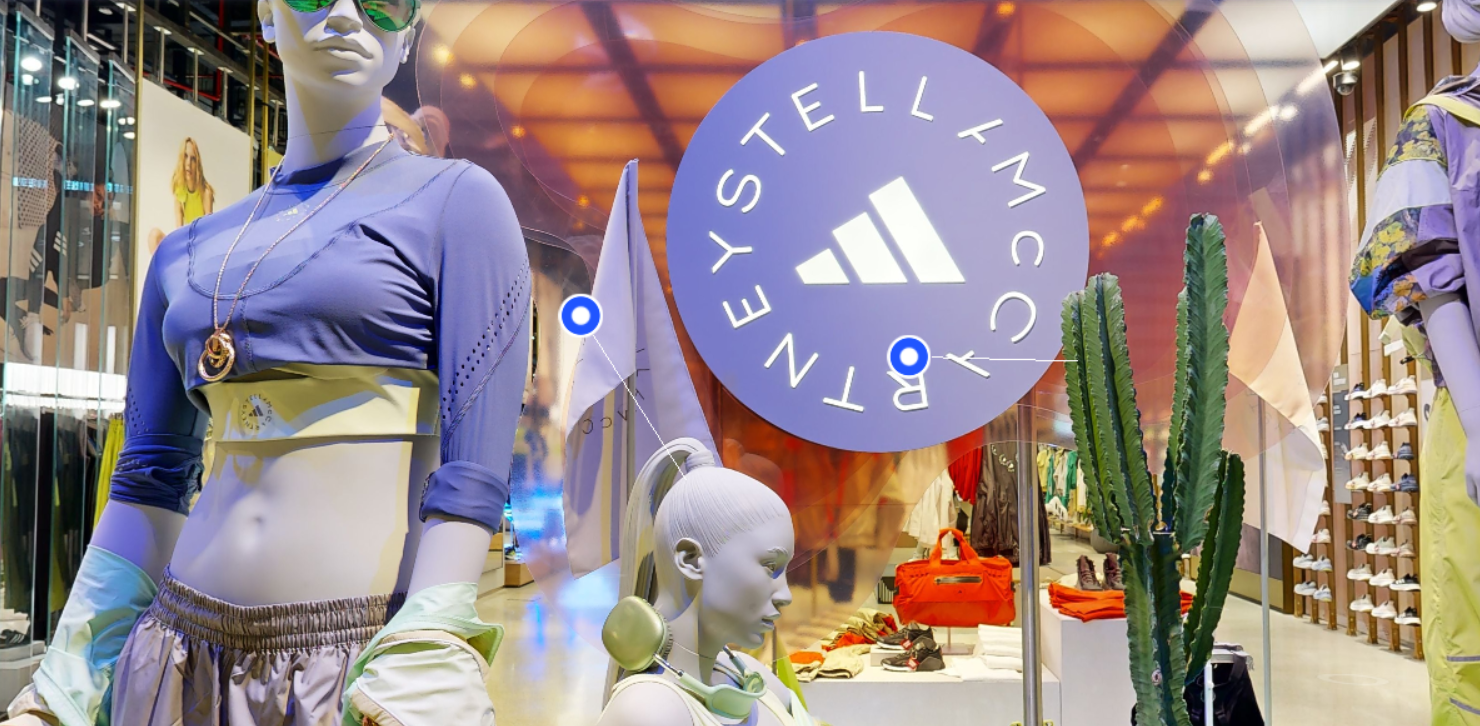
  4. Once placed, name the tag:
  •  Title: Enable this toggle. A tag title helps differentiate between tags.
  • Description: You can add a detailed description (up to 2000 characters) with text formatting options.

4. Tag Action Types – Media #

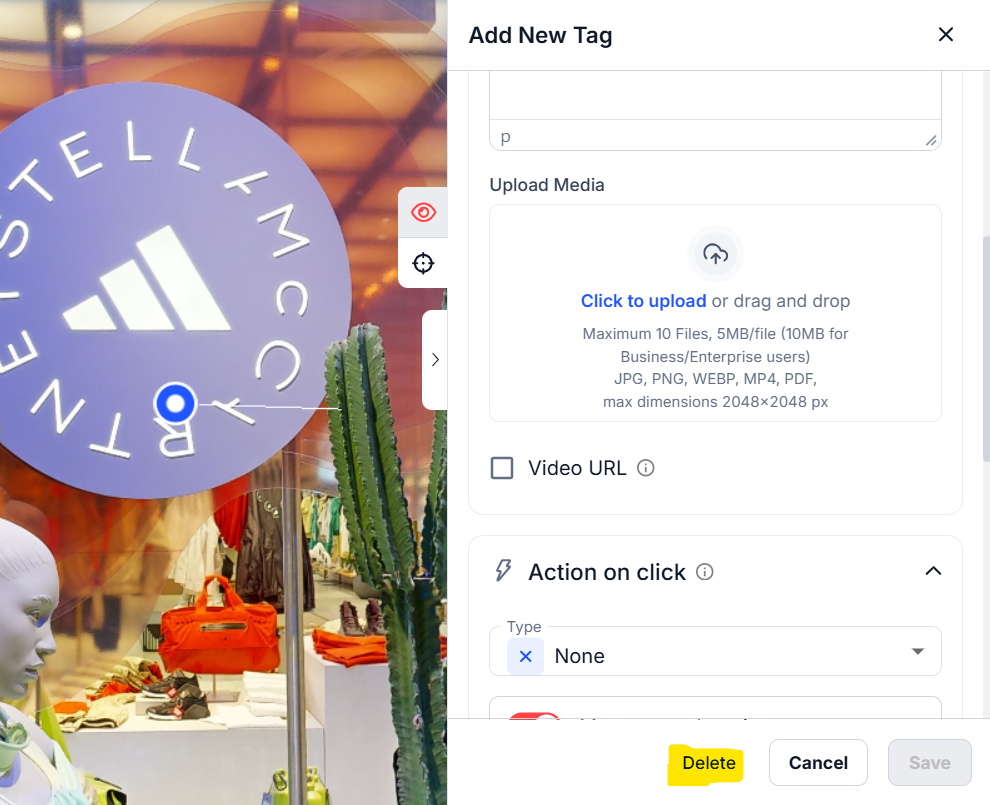
  1. To add a media to the tag, upload images or videos in formats: JPG, PNG, WEBP, MP4. PDFs are also accepted.
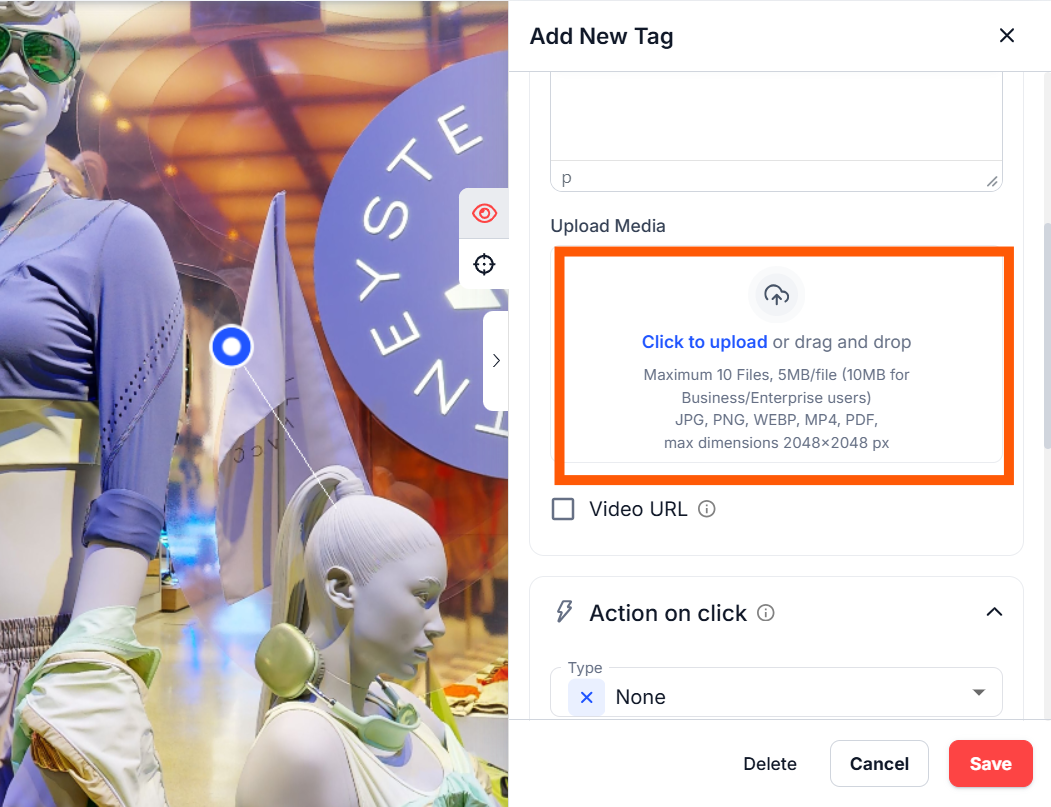
  2. Add a single file or multiple files to create a gallery (max 10 files, 5MB each).
  3. Alternatively, add video links (GIF, YouTube, Vimeo) for single or gallery media display.

5. Customizing Tag Appearance #

In the Appearance section, you can:

  • Choose an Icon: Select from default icons or upload your own.
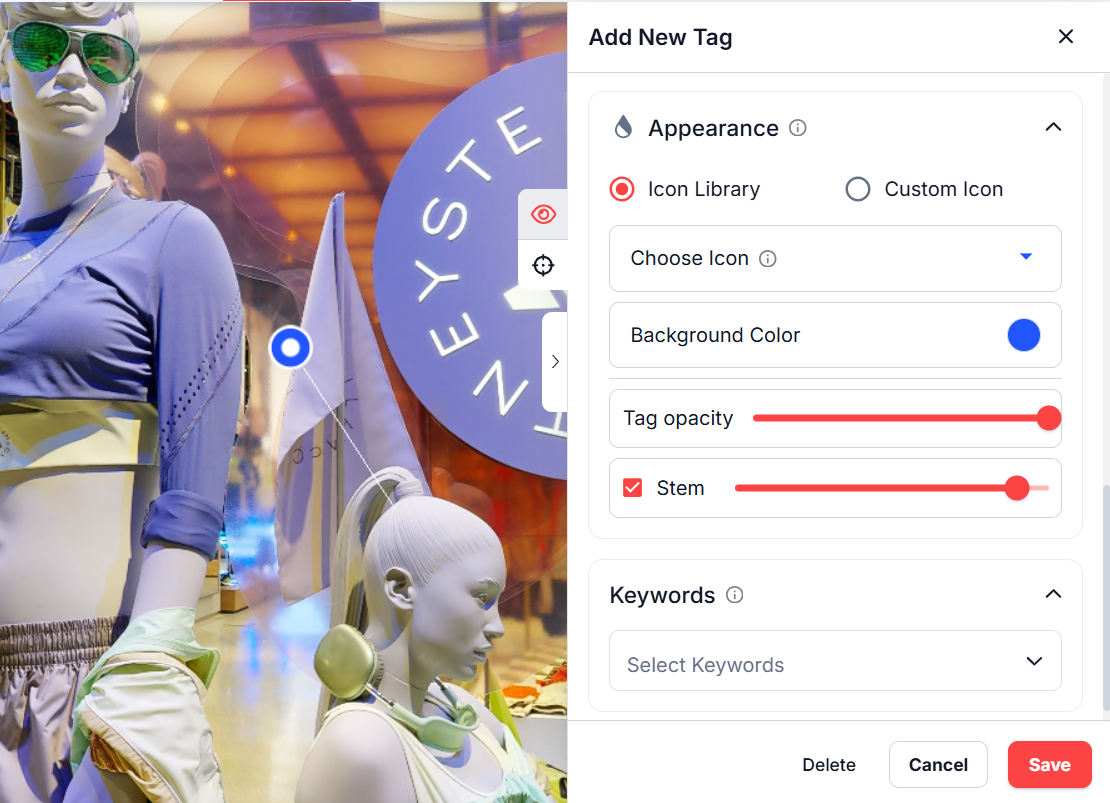
  • Set Colors: Customize the icon and background colors.
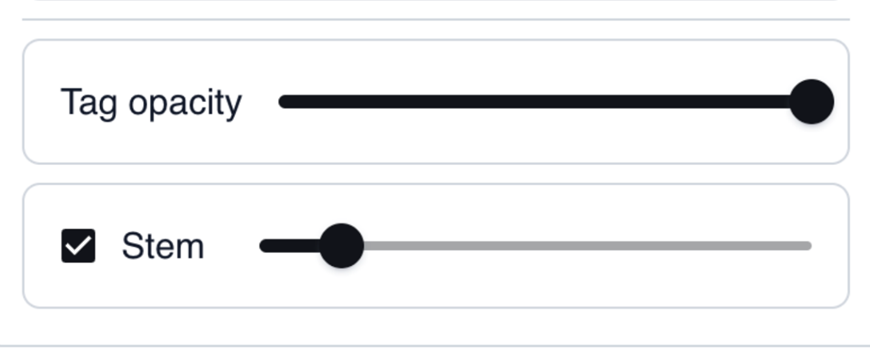
  • Adjust Opacity: Make the tag more or less transparent.
  • Toggle Stem Visibility: Adjust the stem height of the tag
6. Tag Settings #

  1. While creating the new tag, you will see the Eye and Navigation icons in the tags settings.
  2. Eye icon means that you opened the tags General settings.
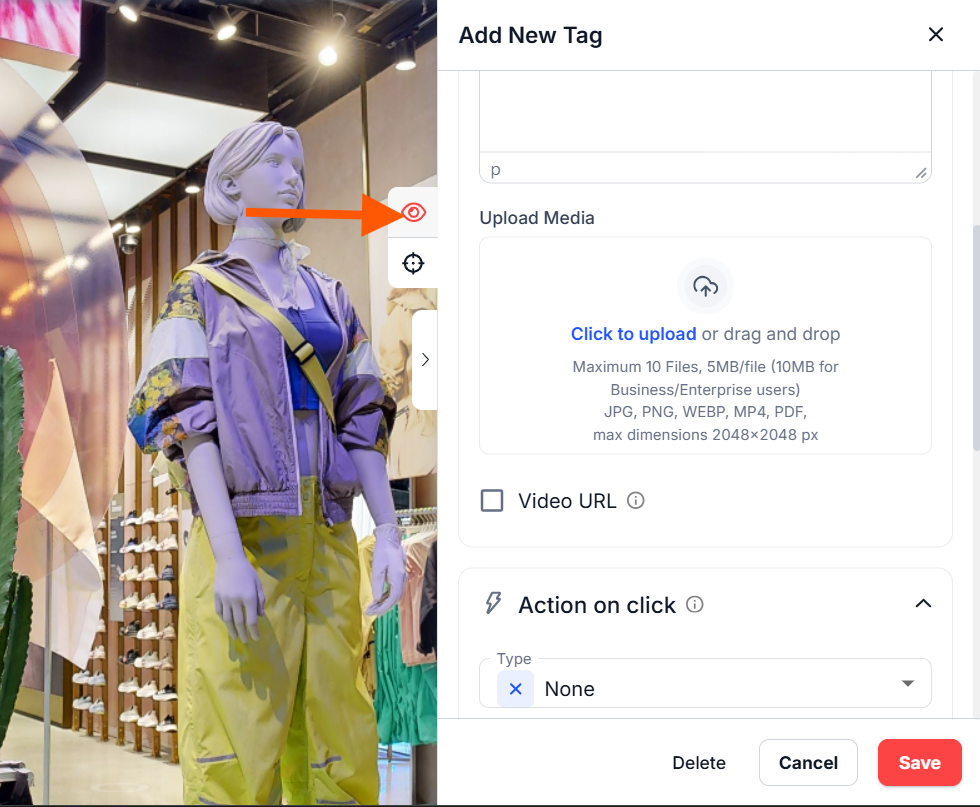
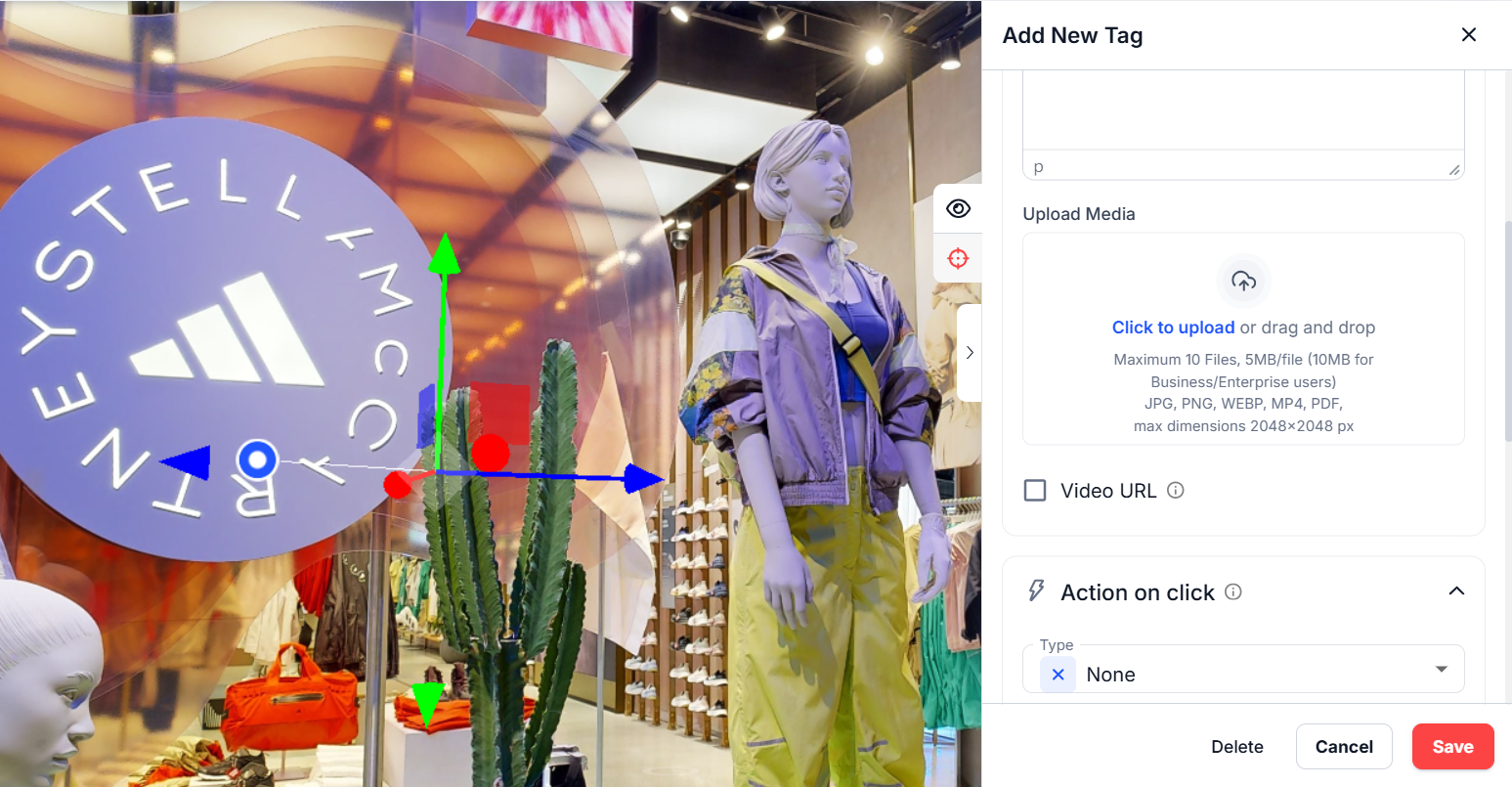
  3. If you have already created a tag and want to change the position , just click on the Navigation icon to change the tag’s position using the arrows . If you start moving the tag but change your mind, click the Eye icon above to close the arrows.
7. Deleting Tags #

To delete a tag created in the space, click the tag to open settings, then click the Delete button.
Support #

If you have any issues or questions, please reach out via Live Chat or email us at admin@liminastudios.com

How to Add Tags in Adidas store?How to Add Tags in Adidas store?

Powered by BetterDocs

Table of Contents
  • 1. Logging into Portal
  • 2. Accessing the Workspace
  • 3. Adding Tags
  • 4. Tag Action Types – Media
  • 5. Customizing Tag Appearance
  • 6. Tag Settings
  • 7. Deleting Tags
  • Support
  • info@liminastudios.com
  • admin@liminastudios.com
  • +971 52 476 4537
Facebook Globe Instagram Phone-alt Linkedin X-twitter Youtube

Copyright © 2025, liminastudios.com