Skip to content
Book a call

Matterport Capture App

1
  • How to Login To Matterport Capture App

Helpful Tips & Guides

6
  • Troubleshoot Common Error Messages
  • Which iPad to Choose ?
  • How to Scan Floors in adidas Store? (General)
  • How To Mark Mirrors in adidas Store?
  • How to Capture a 360° Exterior Photo of an adidas Store ?
  • How to Create a New Job and Name It

Notes and Collaboration

2
  • How to add Notes in an adidas Virtual Tour?
  • How to Manage Notes?

Scanning using iPad or iPhone

7
  • Login To Matterport Capture App
  • How to Create a New Job and Name It
  • How to Scan Using an iPad or iPhone ?
  • How To Mark Mirrors in adidas Store?
  • How to Capture a 360° Exterior Photo of an adidas Store ? (iPad)
  • How to Scan Floors in adidas Store?
  • How to Fix Common Problems When Scanning with iPad?

Scanning using Ricoh Camera

8
  • Login To Matterport Capture App (Ricoh)
  • How to update a firmware on Ricoh camera?
  • How to Create a New Job and Name It
  • How to Connect a Ricoh Theta Z1 Camera to an iPad?
  • How to Scan Using a Ricoh Theta Z1?
  • How To Mark Mirrors in adidas Store?
  • How to Capture a 360° Exterior Photo of an adidas Store ? (Ricoh)
  • How to Scan Floors in adidas Store? (Ricoh)

Tags and Hotspots

1
  • How to Add Tags in Adidas store?
View Categories
  • Home
  • Adidas
  • Notes and Collaboration
  • How to add Notes in an adidas Virtual Tour?

How to add Notes in an adidas Virtual Tour?

info@liminastudios.com
Updated on October 28, 2025

1 min read

Accessing the Tour #

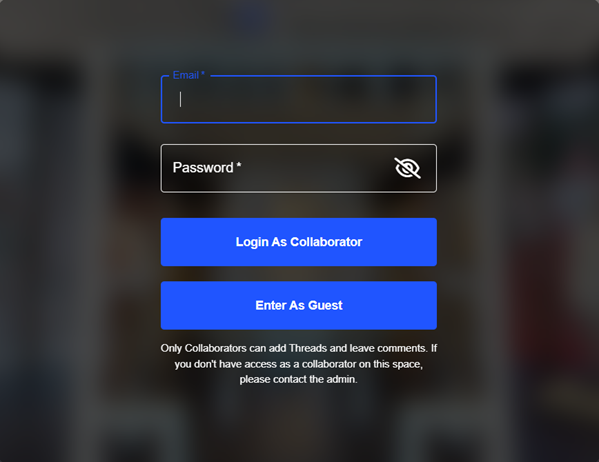
  1. Go to the tour link provided.
  2. Use the username and password to login as Collaborator.

Adding Notes to a Tour #

  • Login as a Collaborator using your email and password as provided.
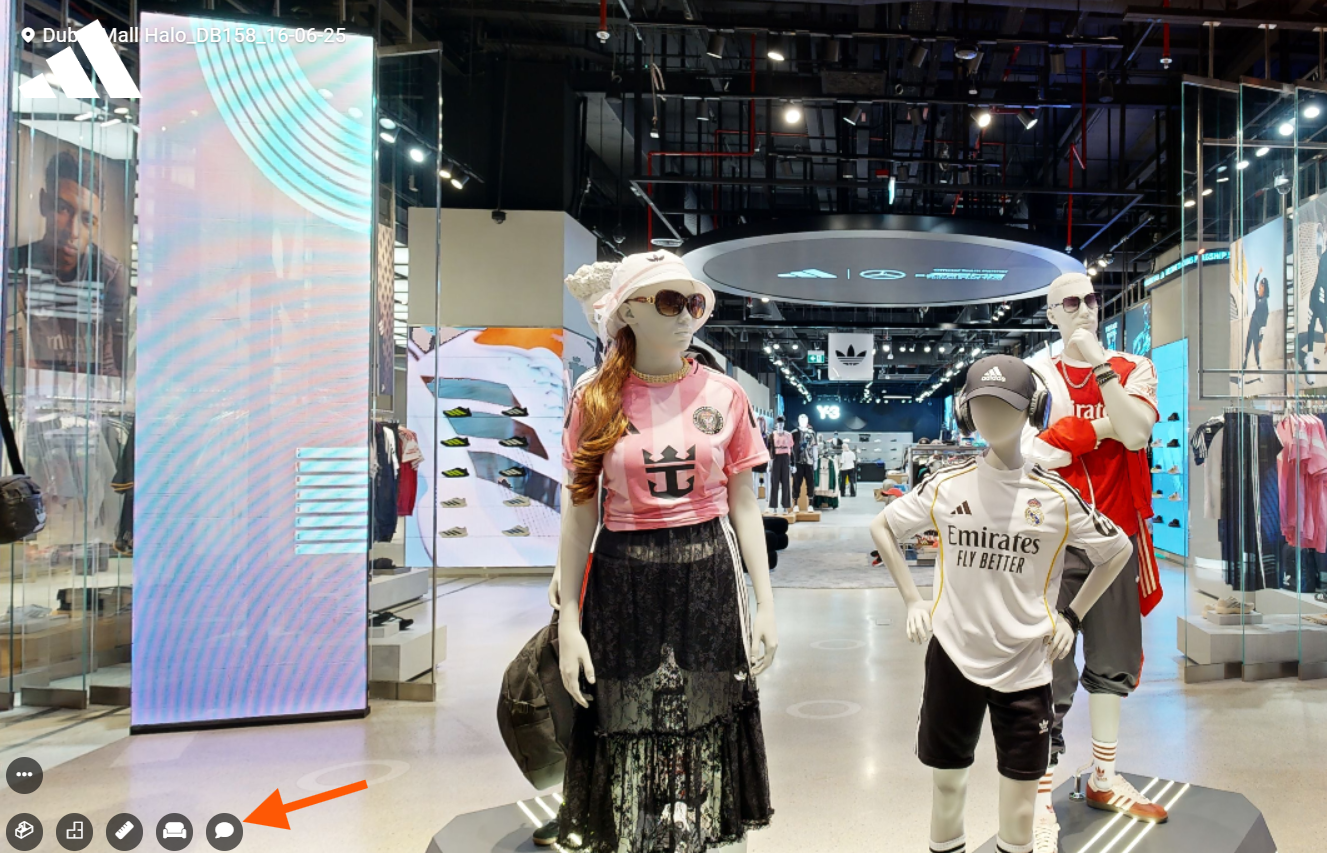
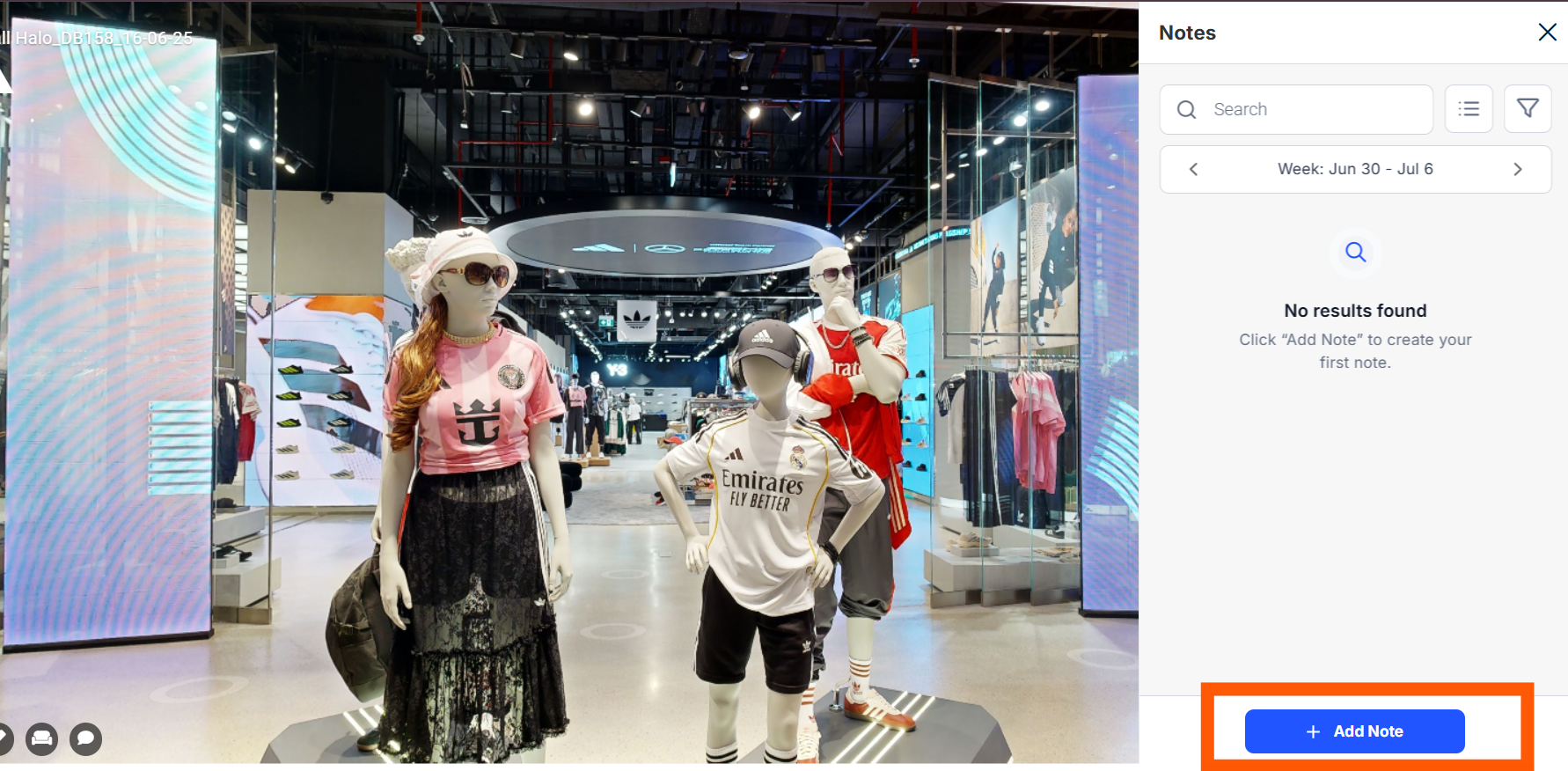
  • To add notes, Click on the Notes icon in the tour. Click “+ Add Note” button.
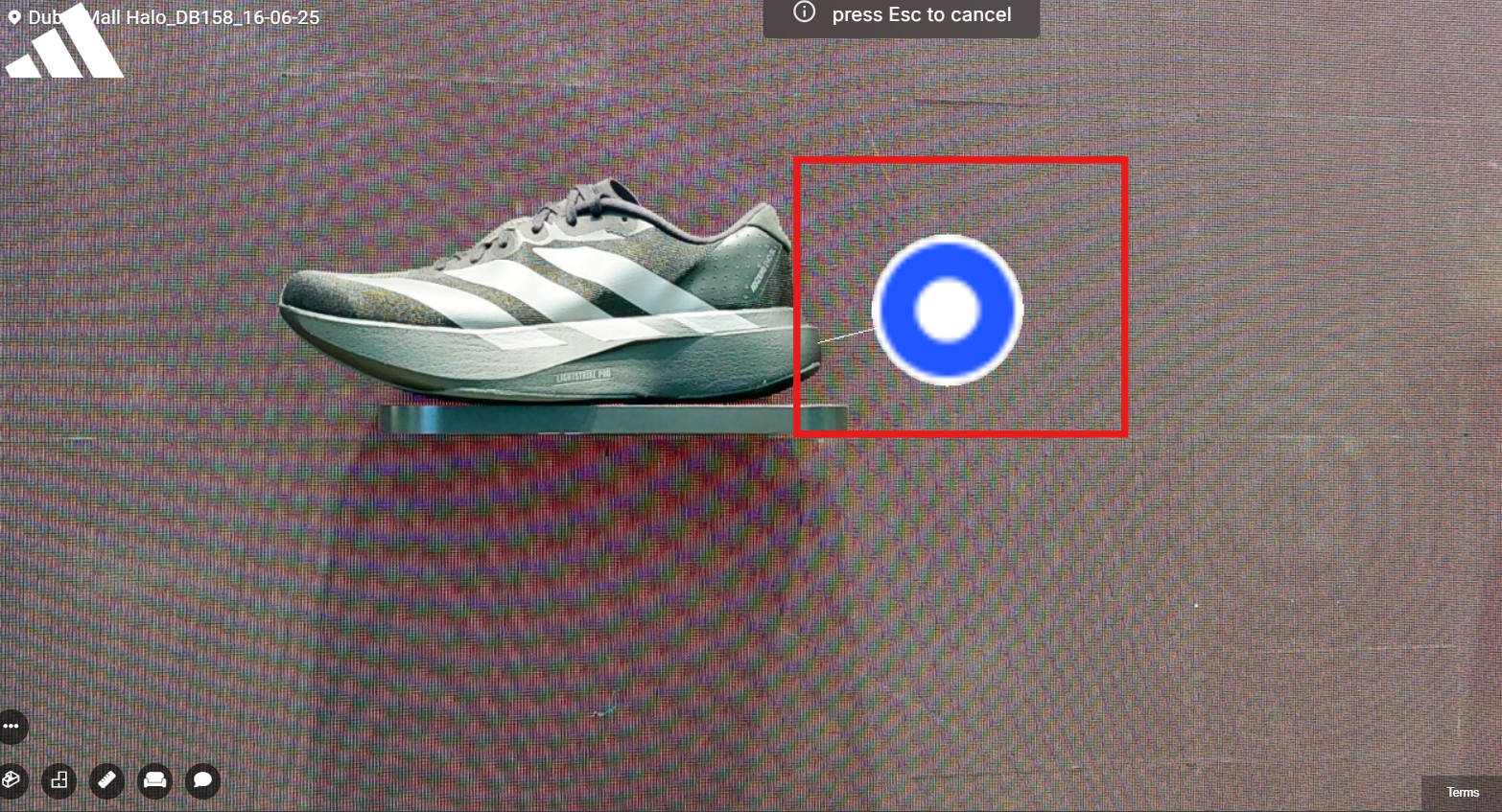
    Move to the desired location within the tour , zoom in if necessary .
     

  • Zoom in and drag the note to pin it to the  exact spot.
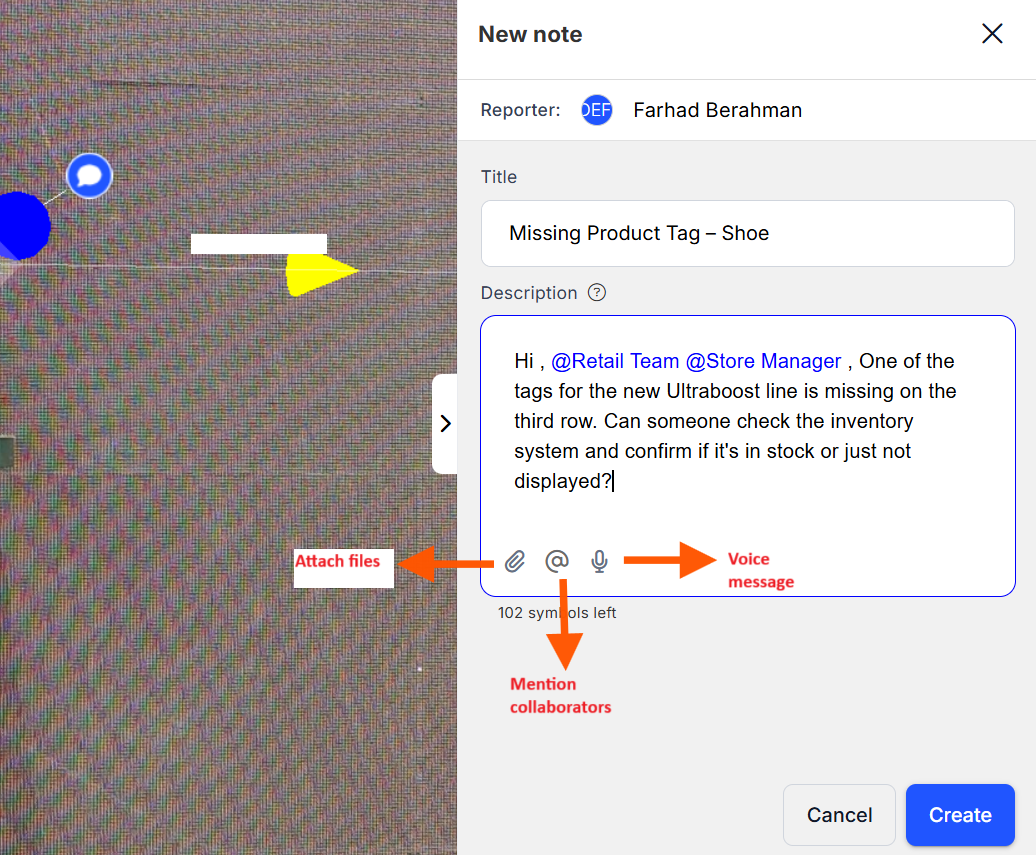
  • A text box will appear. Enter a title and a description. And finally after everythings done, click on create.
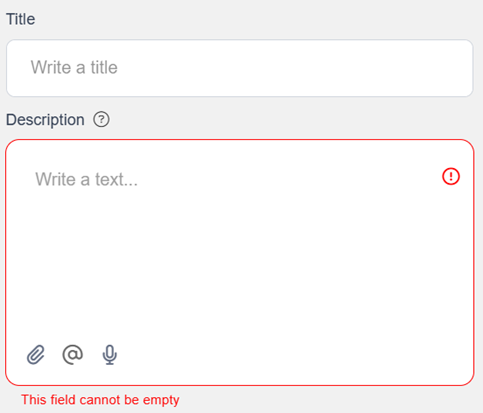
  • For example ,
  • Optionally, you can:
    1. Attach images , videos , pdf( less than 20 mb)
    2. Record voice notes
    3. Mention collaborators 

Mentioning Collaborators #

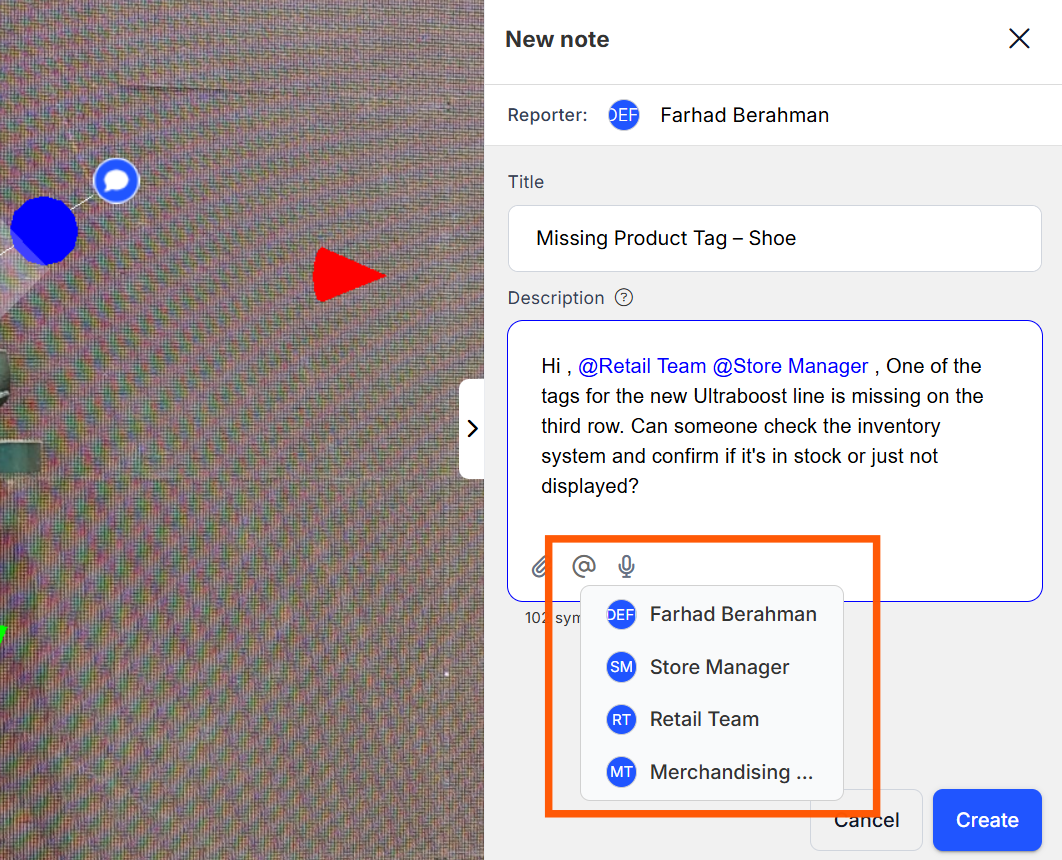
  1. In the note description, click on ‘ @’ sign or type @ followed by their name or email.
  2. A dropdown will appear with users.
  3. Click the correct person to tag them. You can mention as much as users you need.
  4. Click on “Create”

Email notification: #

📧 The mentioned user will receive an email notification like this :

  • Clicking on the “view note” will take you to the particular note.
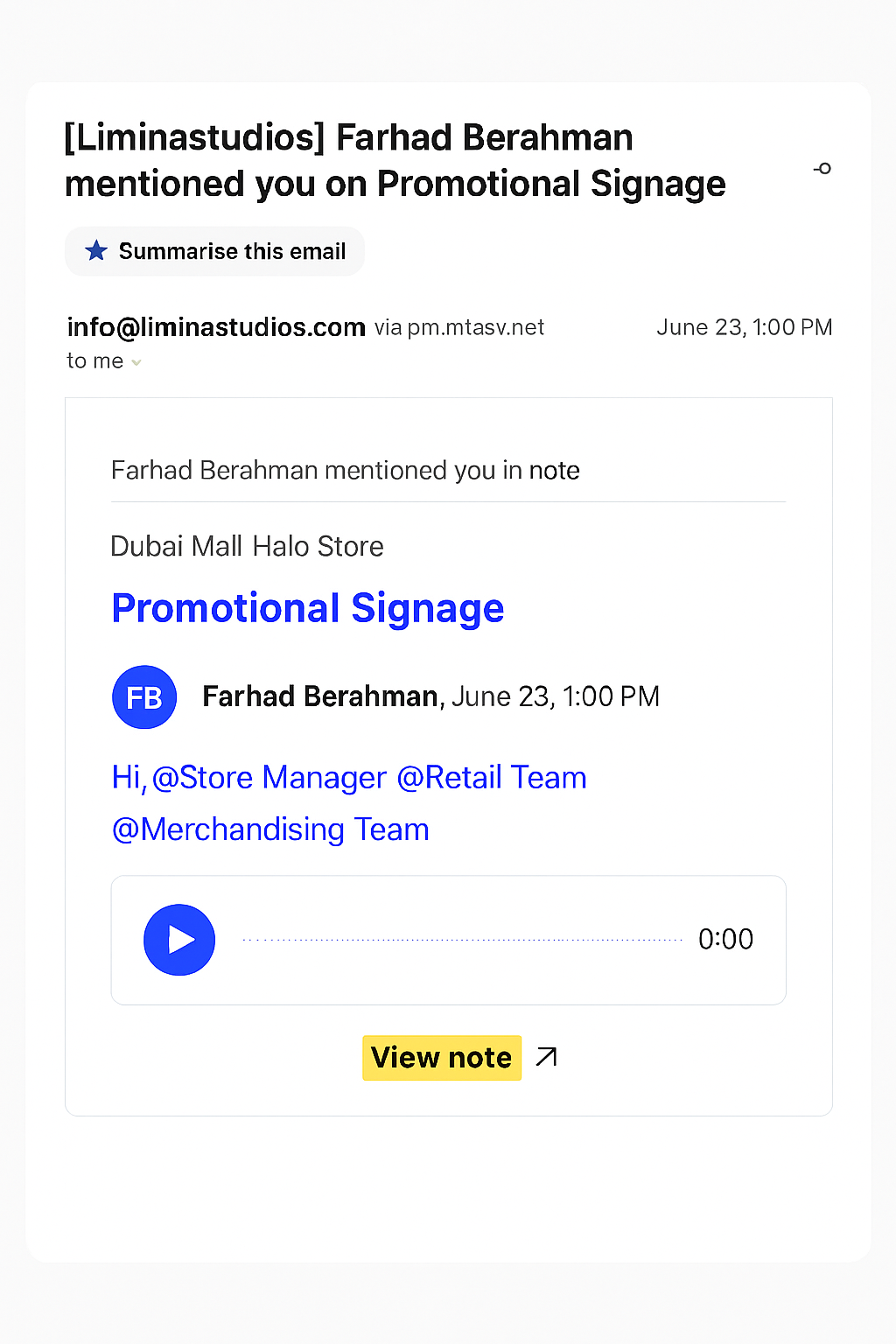
    Email Notification_ Promotional Signage Update

🔔 Make sure to tag collaborators every time if you want them to get notified .

Support #

If you have any issues or questions, please reach out via Live Chat or email us at admin@liminastudios.com

How to Manage Notes?How to Manage Notes?

Powered by BetterDocs

Table of Contents
  • Accessing the Tour
  • Adding Notes to a Tour
  • Mentioning Collaborators
  • Email notification:
  • Support
  • info@liminastudios.com
  • admin@liminastudios.com
  • +971 52 476 4537
Facebook Globe Instagram Phone-alt Linkedin X-twitter Youtube

Copyright © 2025, liminastudios.com