Skip to content
Book a call

Matterport Capture App

1
  • How to Login To Matterport Capture App

Helpful Tips & Guides

6
  • Troubleshoot Common Error Messages
  • Which iPad to Choose ?
  • How to Scan Floors in adidas Store? (General)
  • How To Mark Mirrors in adidas Store?
  • How to Capture a 360° Exterior Photo of an adidas Store ?
  • How to Create a New Job and Name It

Notes and Collaboration

2
  • How to add Notes in an adidas Virtual Tour?
  • How to Manage Notes?

Scanning using iPad or iPhone

7
  • Login To Matterport Capture App
  • How to Create a New Job and Name It
  • How to Scan Using an iPad or iPhone ?
  • How To Mark Mirrors in adidas Store?
  • How to Capture a 360° Exterior Photo of an adidas Store ? (iPad)
  • How to Scan Floors in adidas Store?
  • How to Fix Common Problems When Scanning with iPad?

Scanning using Ricoh Camera

8
  • Login To Matterport Capture App (Ricoh)
  • How to update a firmware on Ricoh camera?
  • How to Create a New Job and Name It
  • How to Connect a Ricoh Theta Z1 Camera to an iPad?
  • How to Scan Using a Ricoh Theta Z1?
  • How To Mark Mirrors in adidas Store?
  • How to Capture a 360° Exterior Photo of an adidas Store ? (Ricoh)
  • How to Scan Floors in adidas Store? (Ricoh)

Tags and Hotspots

1
  • How to Add Tags in Adidas store?
View Categories
  • Home
  • Adidas
  • Scanning using Ricoh Camera
  • How to Connect a Ricoh Theta Z1 Camera to an iPad?

How to Connect a Ricoh Theta Z1 Camera to an iPad?

info@liminastudios.com
Updated on October 28, 2025

2 min read

What You Need #

  • A Ricoh Theta Camera Z1 updated to latest version. 
  • An iPad  ( updated to latest iOS version)
  • Matterport Capture app (installed and fully updated on iPad)
  • Wi-Fi enabled on your iPad
  • A tripod for your camera

Step 1: Turn On Your Ricoh Theta Camera #

  1. Press the power button on the side of your Ricoh Theta camera to turn it on. Once it’s turned on , the Wi-Fi icon starts to blink looking for a connection.
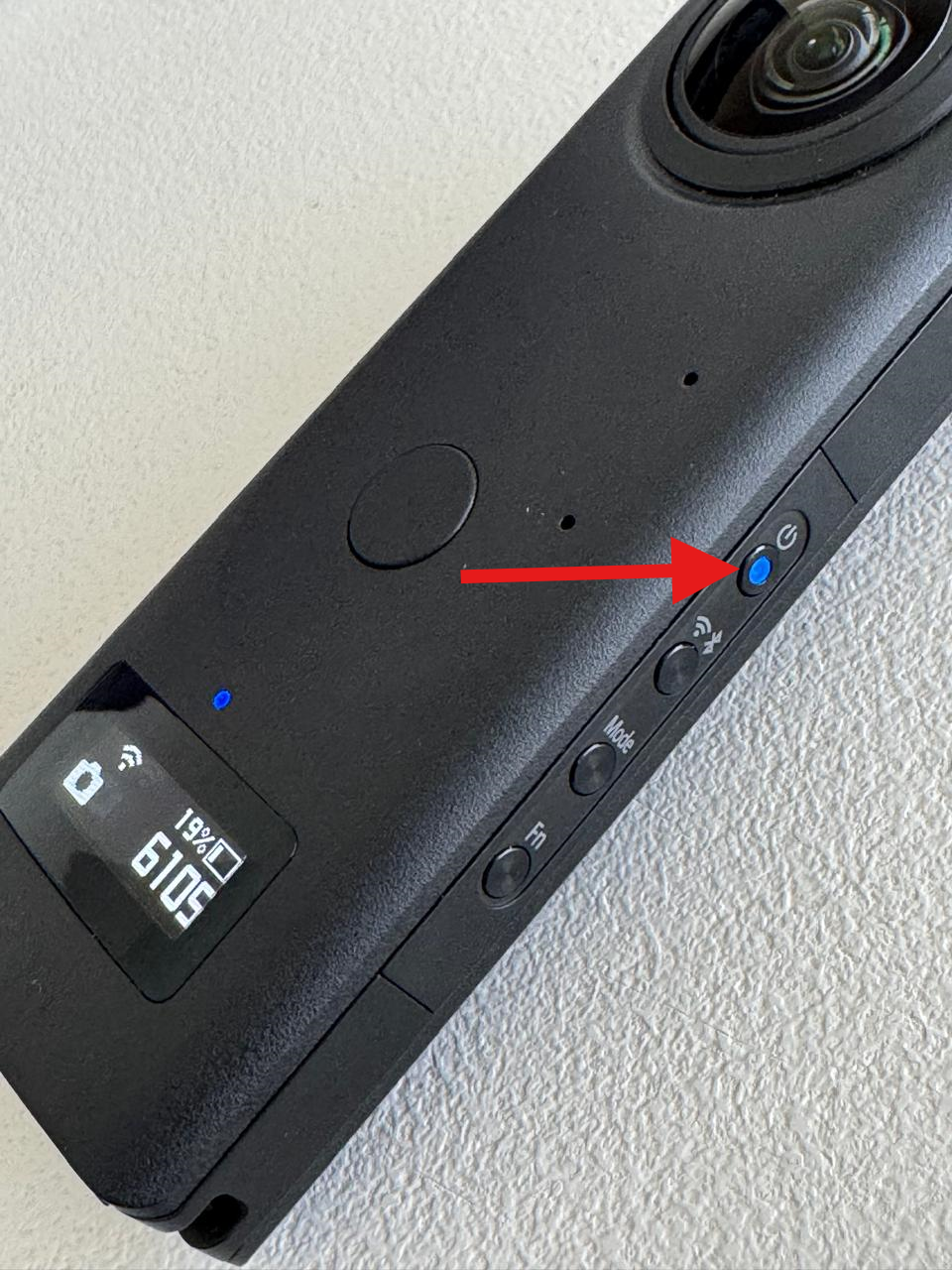
  2. Wait a few seconds for it to fully start up.

Tip: Make sure your camera has enough battery before starting.

Step 2: Enable Wi-Fi on the Camera #

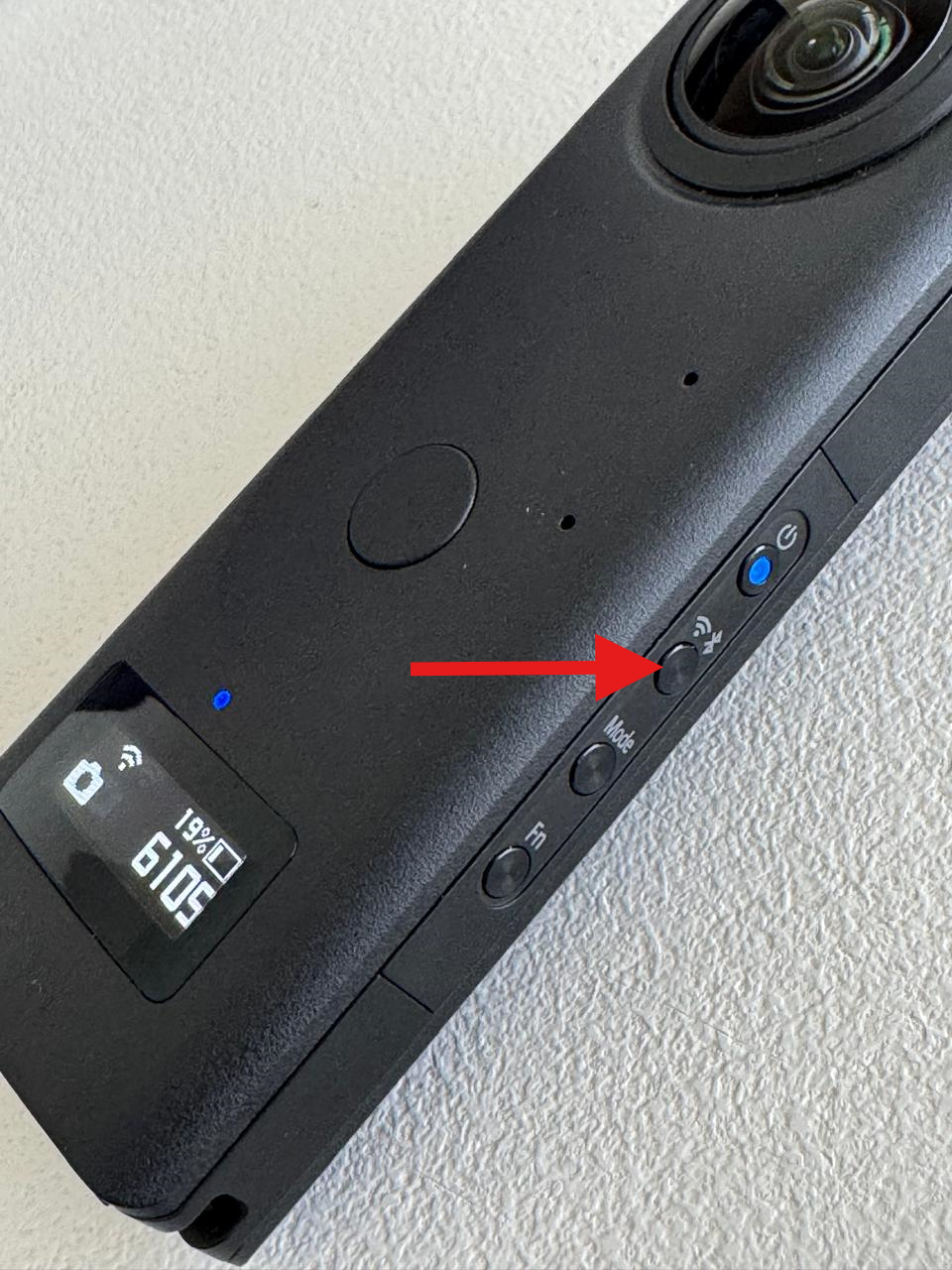
The Wi-Fi will always automatically connect, If the blinking doesn’t start, click the Wi-Fi button on the right-hand side.
Step 3: Connect Your iPad to the Camera’s Wi-Fi #

  1. Open Settings on your iPad.
  2. Tap Wi-Fi and look for a network name starting with THETA (e.g., THETA******.OSC).
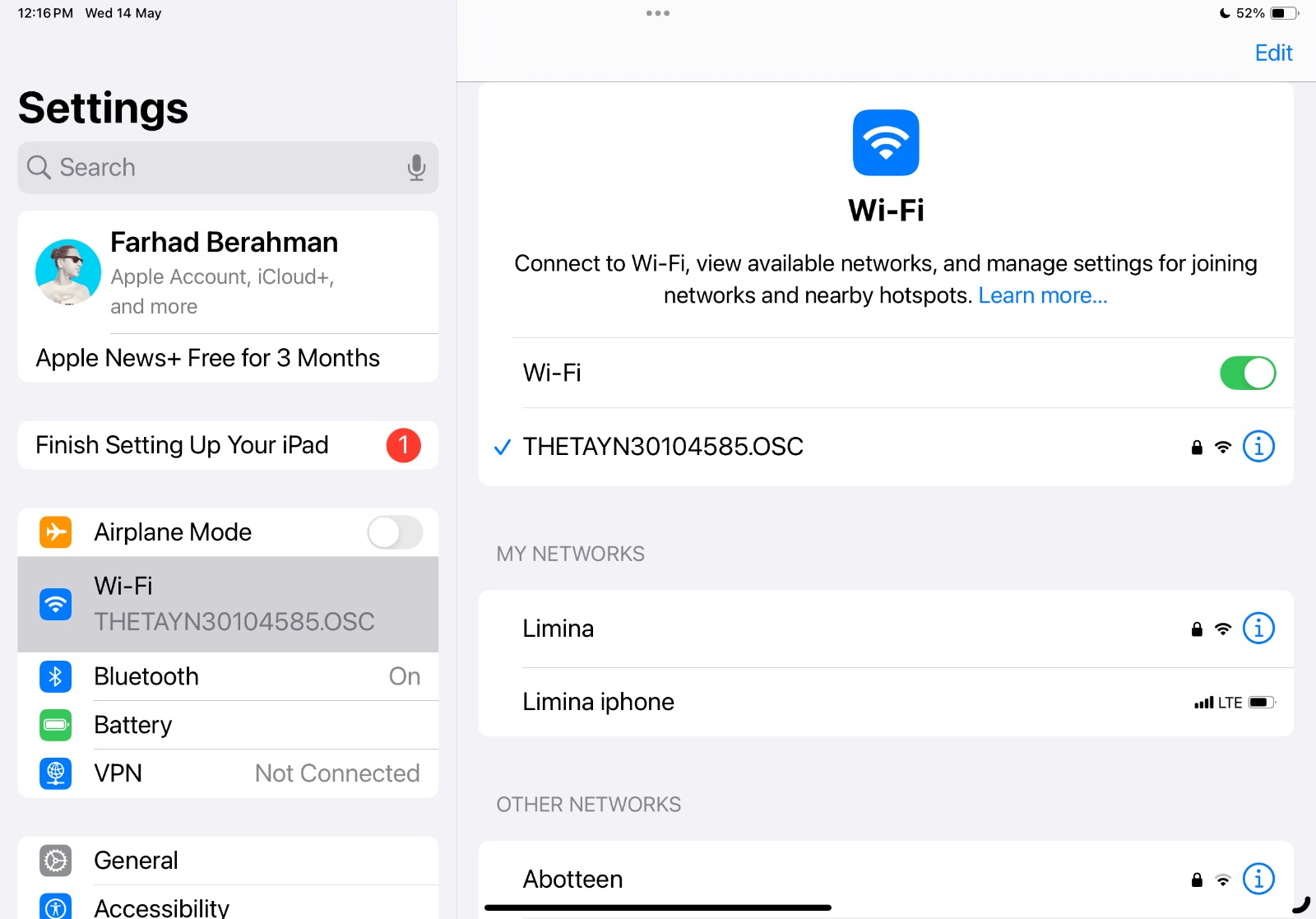
  3. Tap the Theta network to connect.
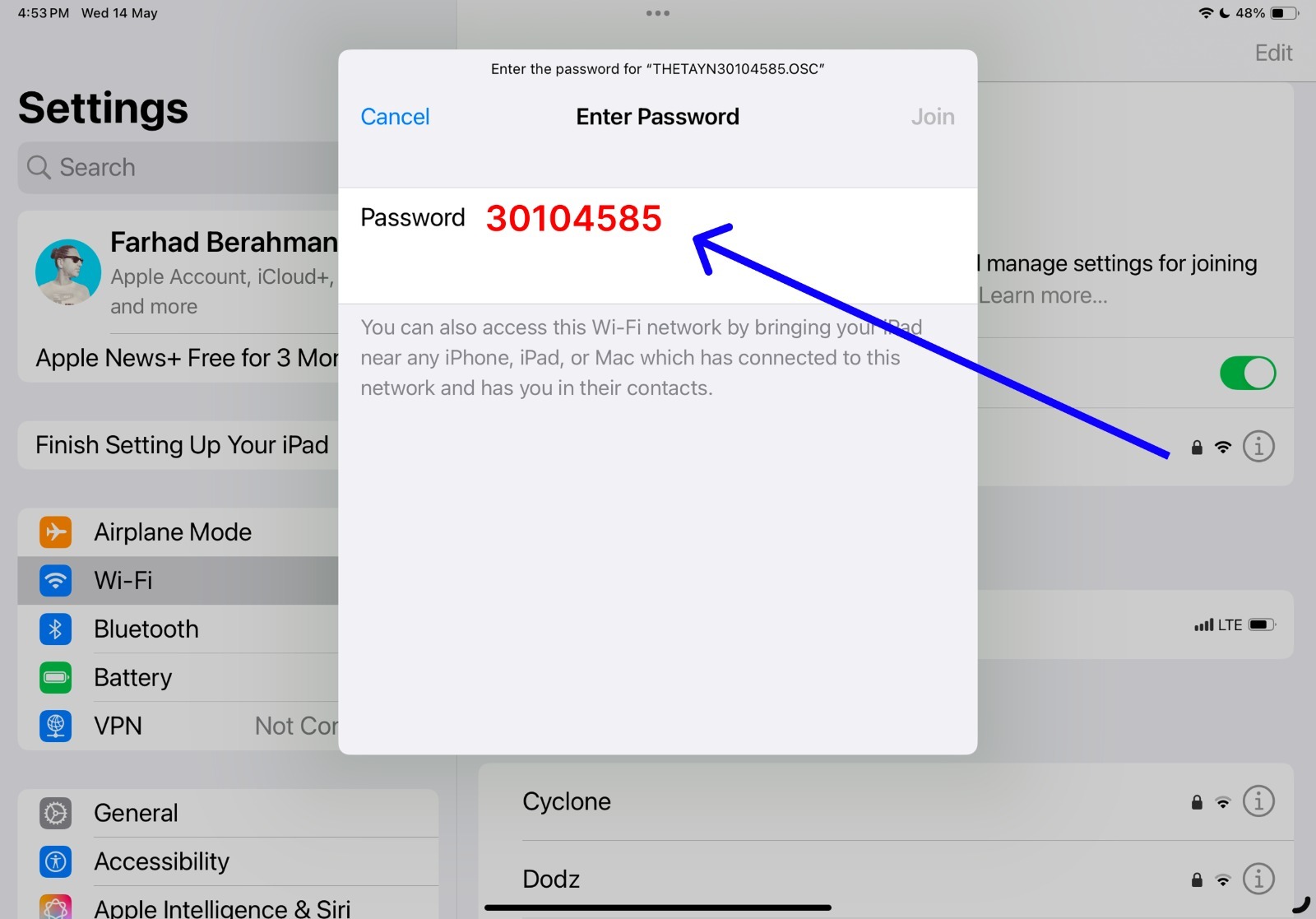
  4. Enter the Wi-Fi password, which is the last 8 digits of the serial number (printed on the bottom of your Ricoh Theta camera).
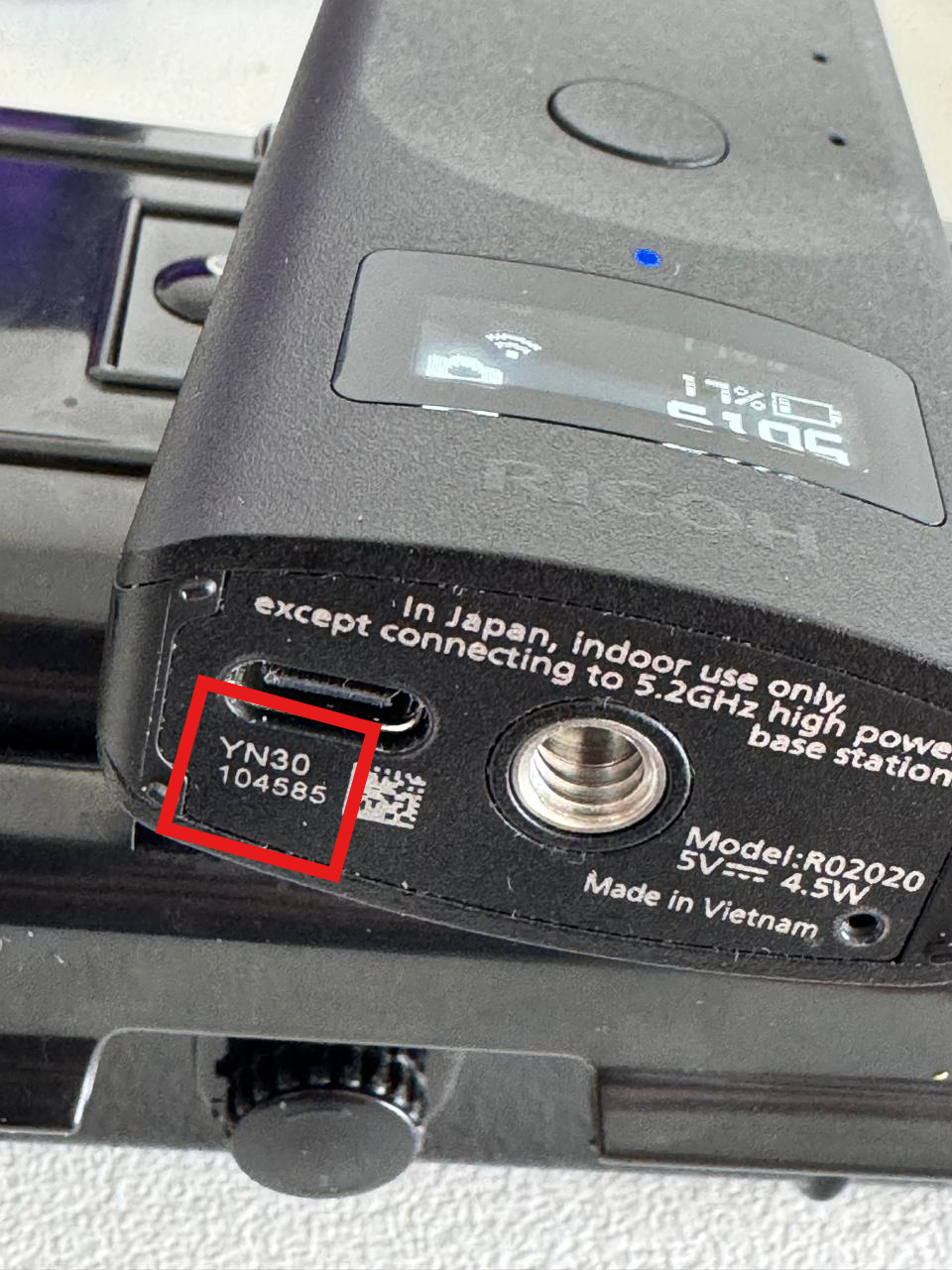
  5. Wait until your iPad is connected.
  6. It connection will show “No internet Connection” in iPad. You can ignore it.

Tip: If your iPad has mobile data enabled, turn it off to avoid connection issues.

Step 4: Open the Matterport Capture App #

  1. Go to the App Store and download the Matterport capture App if not already downloaded.
  2. Open the app and allow permissions (such as access to photos and location).
  3. The app should automatically detect your Ricoh Theta camera.

If the app doesn’t detect the camera, restart both your iPad and the camera.

Step 5: Start Capturing Virtual Tours! #

  • How to Scan Using a Ricoh Theta Z1?

Troubleshooting Tips #

  • Can’t find the Theta Wi-Fi network? Restart your camera and try again
  • Wi-Fi keeps disconnecting? Make sure your camera has enough battery.
  • Camera won’t connect to the app? Forget the Theta Wi-Fi in iPad settings and reconnect.

If all else fails, restart your iPad and try again.

Support #

If you have any issues or questions, please reach out via Live Chat or email us at admin@liminastudios.com

How to Create a New Job and Name ItHow to Scan Using a Ricoh Theta Z1?

Powered by BetterDocs

Table of Contents
  • What You Need
  • Step 1: Turn On Your Ricoh Theta Camera
  • Step 2: Enable Wi-Fi on the Camera
  • Step 3: Connect Your iPad to the Camera’s Wi-Fi
  • Step 4: Open the Matterport Capture App
  • Step 5: Start Capturing Virtual Tours!
  • Troubleshooting Tips
  • Support
  • info@liminastudios.com
  • admin@liminastudios.com
  • +971 52 476 4537
Facebook Globe Instagram Phone-alt Linkedin X-twitter Youtube

Copyright © 2025, liminastudios.com