
- Position the Camera
-If you are using Ricoh Theta Z1 place your camera outside the store in a location that provides a clear view of the exterior.
-If you are using an iPad, position yourself outside the store in a location that provides a clear view of the exterior. - Open the Matterport Capture App
- In the settings, choose the 360° Capture option.
- Note: This is different from standard 3D scanning, as you are only capturing a panoramic image.
- Select 360° Capture
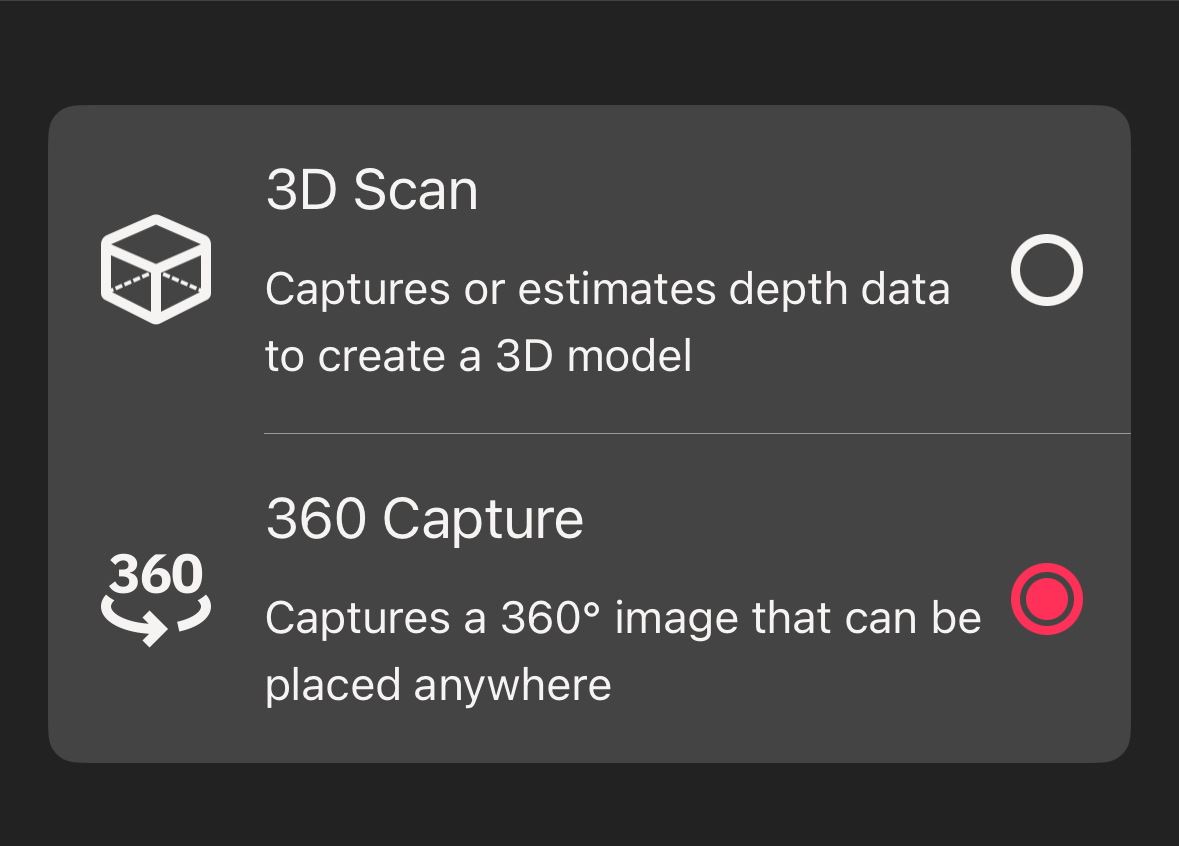
- In the settings, choose the 360° Capture option.
- Note: This is different from standard 3D scanning, as you are only capturing a panoramic image.
- Move Out of View
- If you are using Theta camera, step away from the camera to ensure you are not in the shot.
- If you are using an iPad just carry on capturing as usual.
- Capture the 360° Photo
- Tap the Capture button in the app to begin taking the 360° photo.
- Preview the 360° Image
- Once the capture is complete, check the preview on your device.
- You can find the captured 360° photo by tapping the icon in the bottom right-hand corner of the app.
How to Capture a 360° Exterior Photo of an adidas Store ? (iPad)

Updated on October 24, 2025
1 min read
Powered by BetterDocs