Skip to content
Book a call

Matterport Capture App

1
  • How to Login To Matterport Capture App

Helpful Tips & Guides

6
  • Troubleshoot Common Error Messages
  • Which iPad to Choose ?
  • How to Scan Floors in adidas Store? (General)
  • How To Mark Mirrors in adidas Store?
  • How to Capture a 360° Exterior Photo of an adidas Store ?
  • How to Create a New Job and Name It

Notes and Collaboration

2
  • How to add Notes in an adidas Virtual Tour?
  • How to Manage Notes?

Scanning using iPad or iPhone

7
  • Login To Matterport Capture App
  • How to Create a New Job and Name It
  • How to Scan Using an iPad or iPhone ?
  • How To Mark Mirrors in adidas Store?
  • How to Capture a 360° Exterior Photo of an adidas Store ? (iPad)
  • How to Scan Floors in adidas Store?
  • How to Fix Common Problems When Scanning with iPad?

Scanning using Ricoh Camera

8
  • Login To Matterport Capture App (Ricoh)
  • How to update a firmware on Ricoh camera?
  • How to Create a New Job and Name It
  • How to Connect a Ricoh Theta Z1 Camera to an iPad?
  • How to Scan Using a Ricoh Theta Z1?
  • How To Mark Mirrors in adidas Store?
  • How to Capture a 360° Exterior Photo of an adidas Store ? (Ricoh)
  • How to Scan Floors in adidas Store? (Ricoh)

Tags and Hotspots

1
  • How to Add Tags in Adidas store?
View Categories
  • Home
  • Adidas
  • Notes and Collaboration
  • How to Manage Notes?

How to Manage Notes?

info@liminastudios.com
Updated on October 24, 2025

2 min read

šŸ› ļø Managing Notes #

Please note that you can edit the position , delete, edit contents, mark as completed , only if you are the creator of the note. You can’t edit or delete notes created by someone else.

Locating Notes : #

  • Click on the notes icon, and you can see the list of notes added per week.
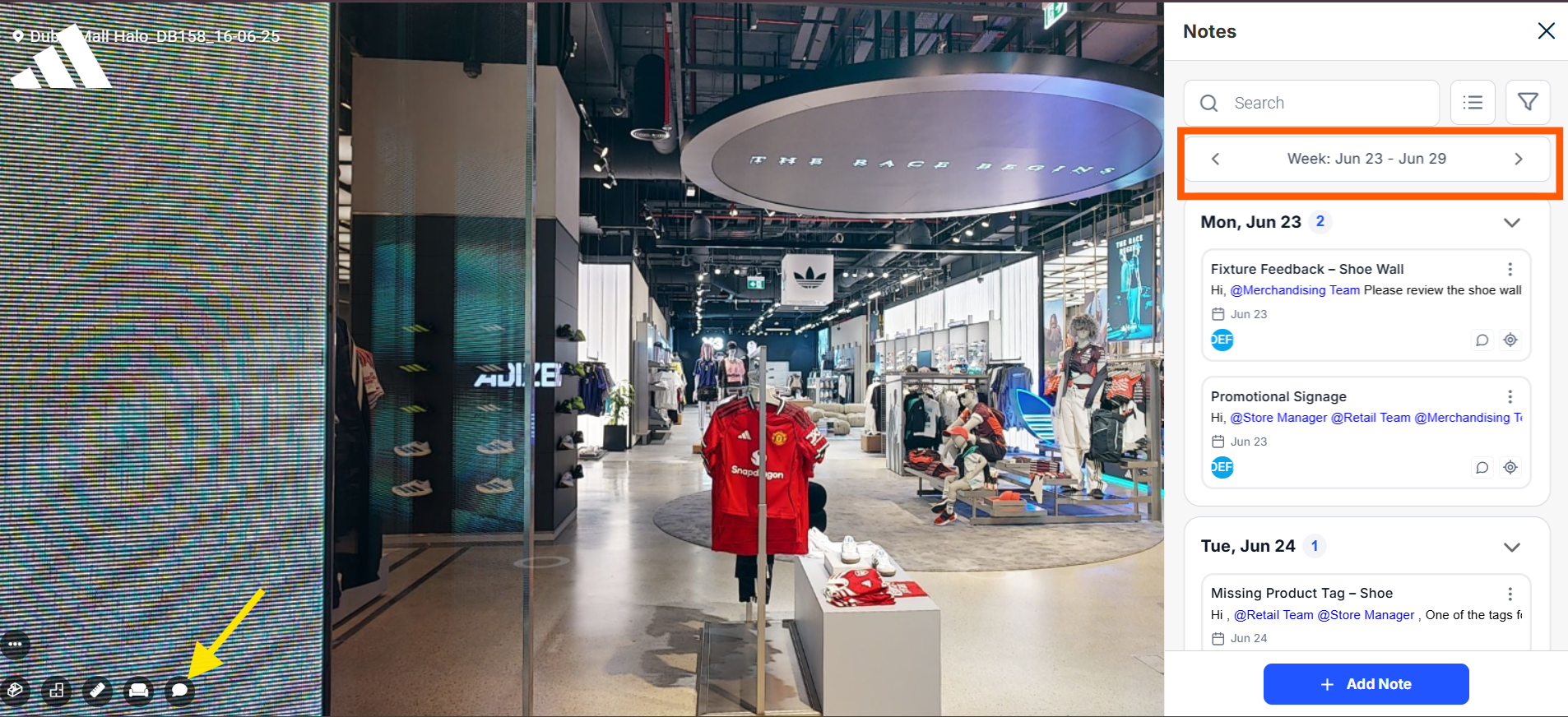
  • You can also click on the side bar. It will show you the list of notes.

  • You can organize view by Date or List view
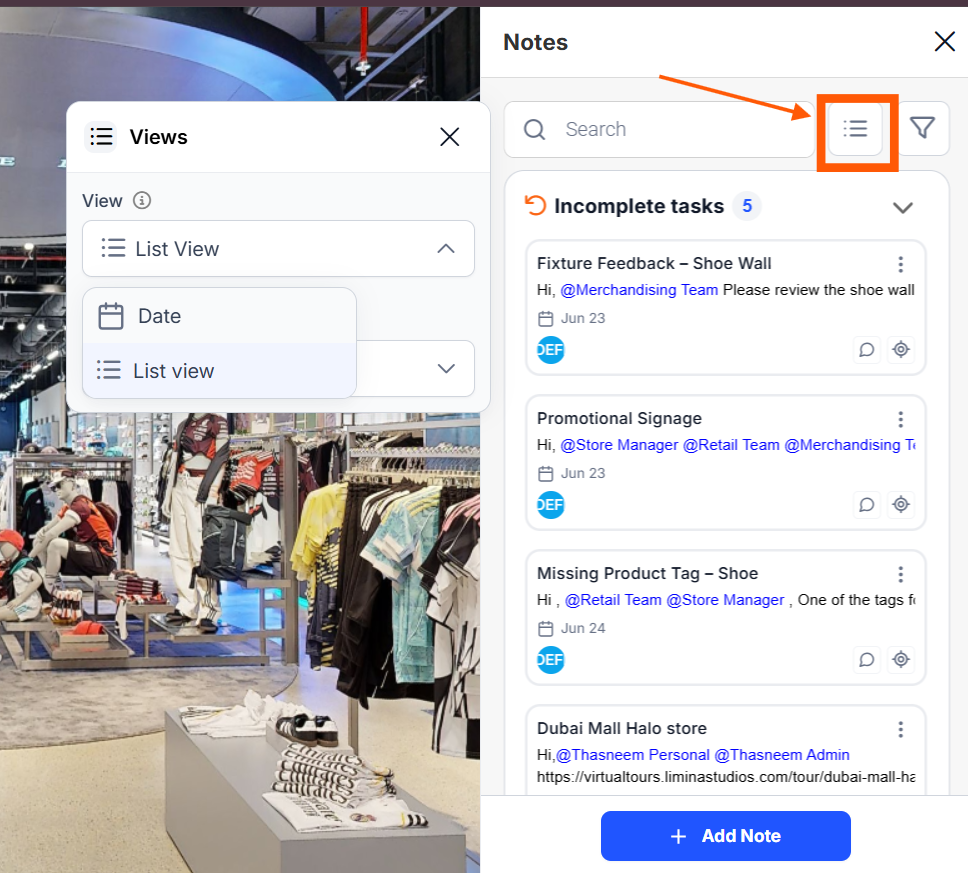
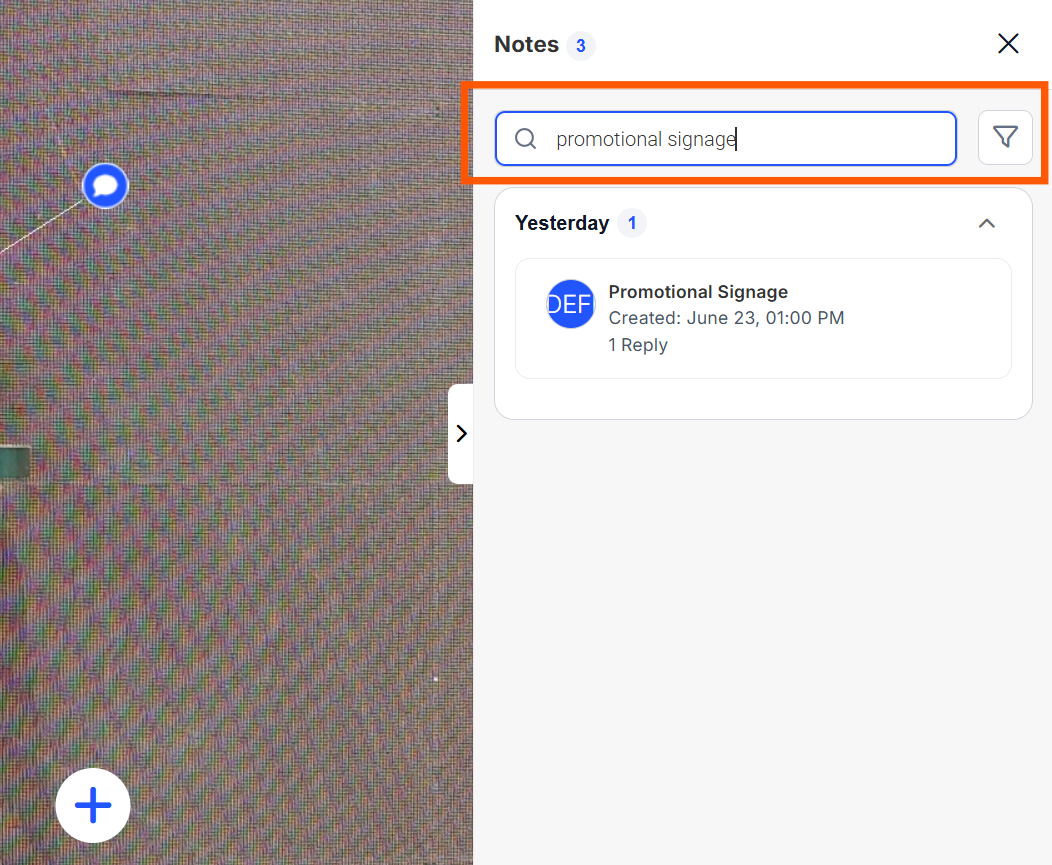
  • You can make use of the search bar to search any notes. Type any keywords and the notes with the keywords will appear .Ā 

Editing Position: #

  • Click on 3 dots . Select ā€˜edit Position’ , you can move positions to right,Ā  left , front , back , up and down using the arrows.
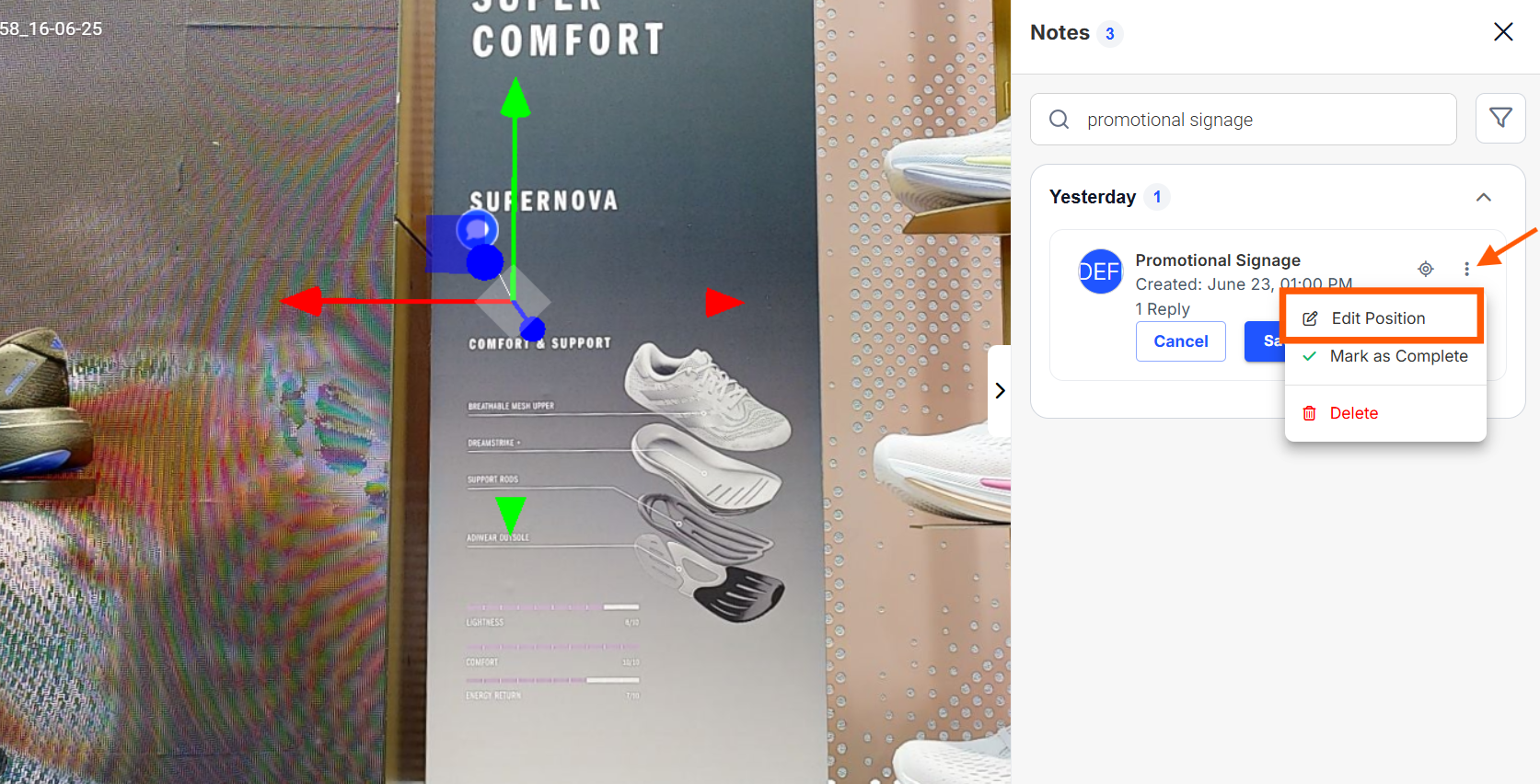
  • After deciding the position , simply click on ā€œSaveā€.
  • You can also ā€˜Delete’ or ā€˜Mark as completed’ .

Editing Note Content : #

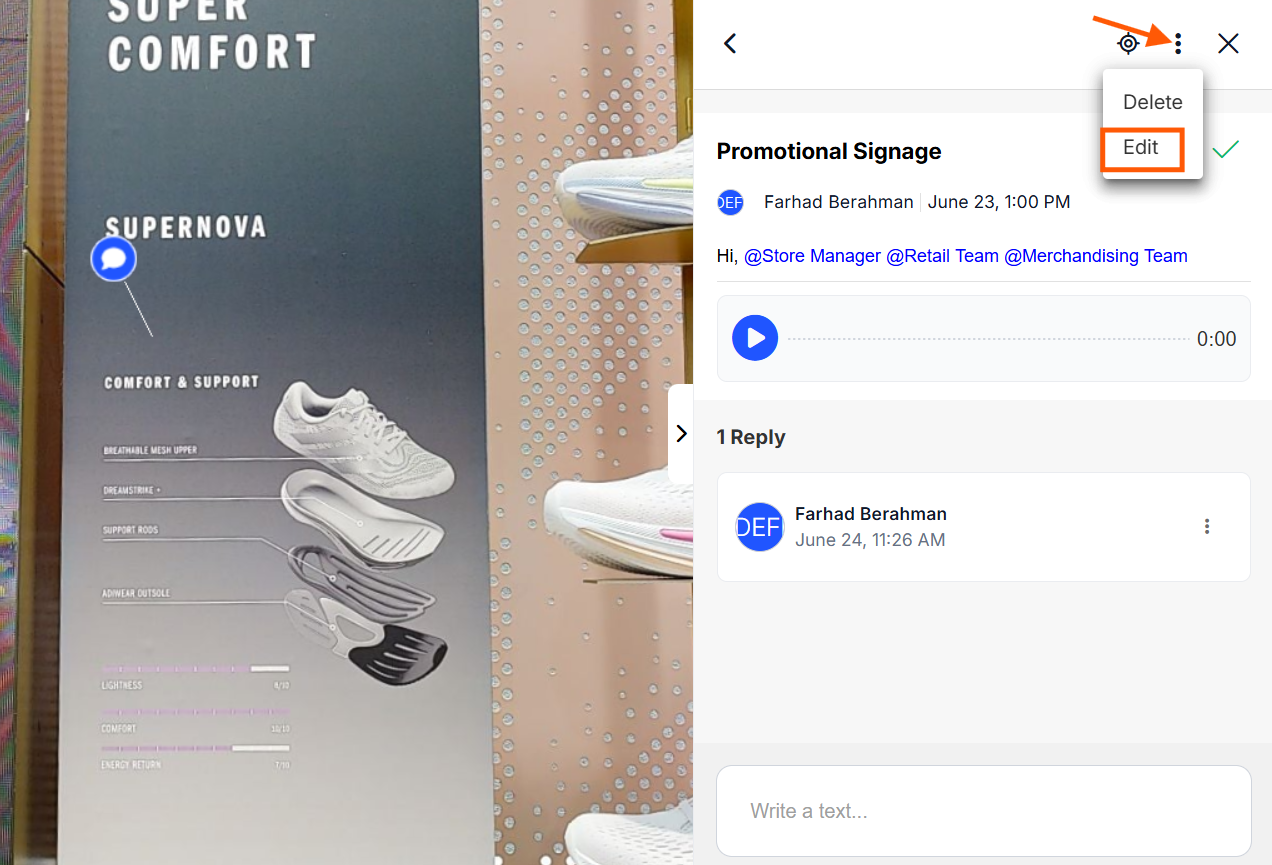
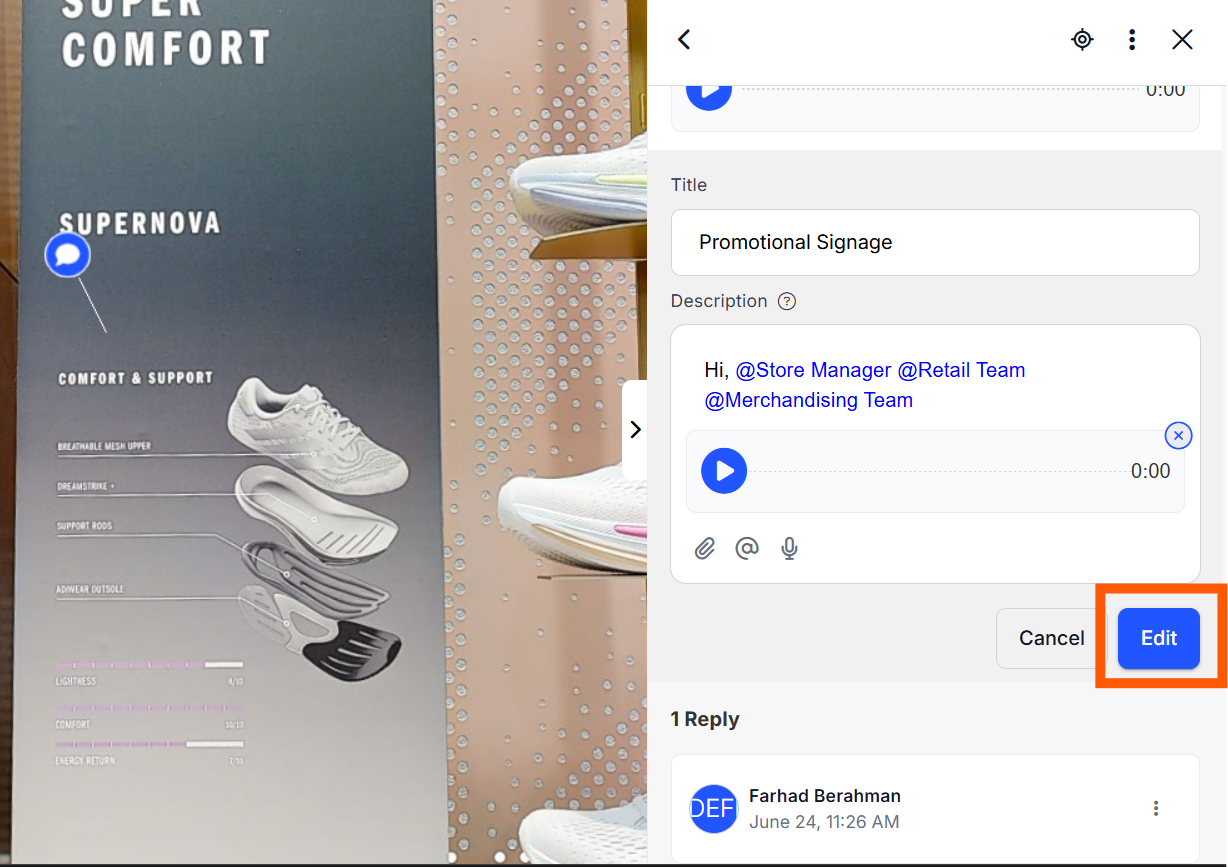
  • Simply click and open the note that you want to edit, click on 3 dots then select ā€˜Edit’

  • After modifications, click on ā€œEditā€

Mark as Completed : #

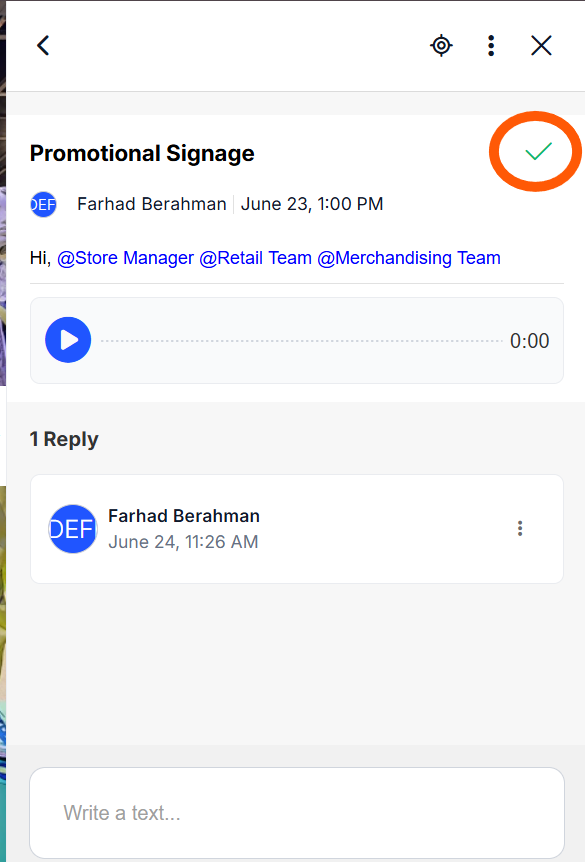
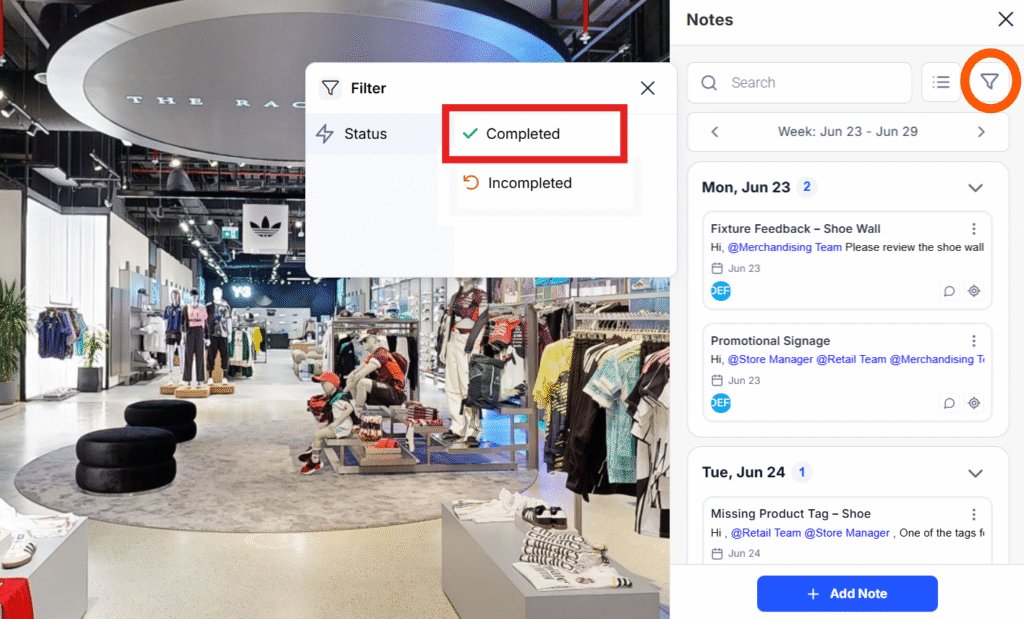
  • When the issue is resolved or an enquiry is completed on a topic, simply click on the green ticket mark, and the note will be marked as completed and moved to archive.
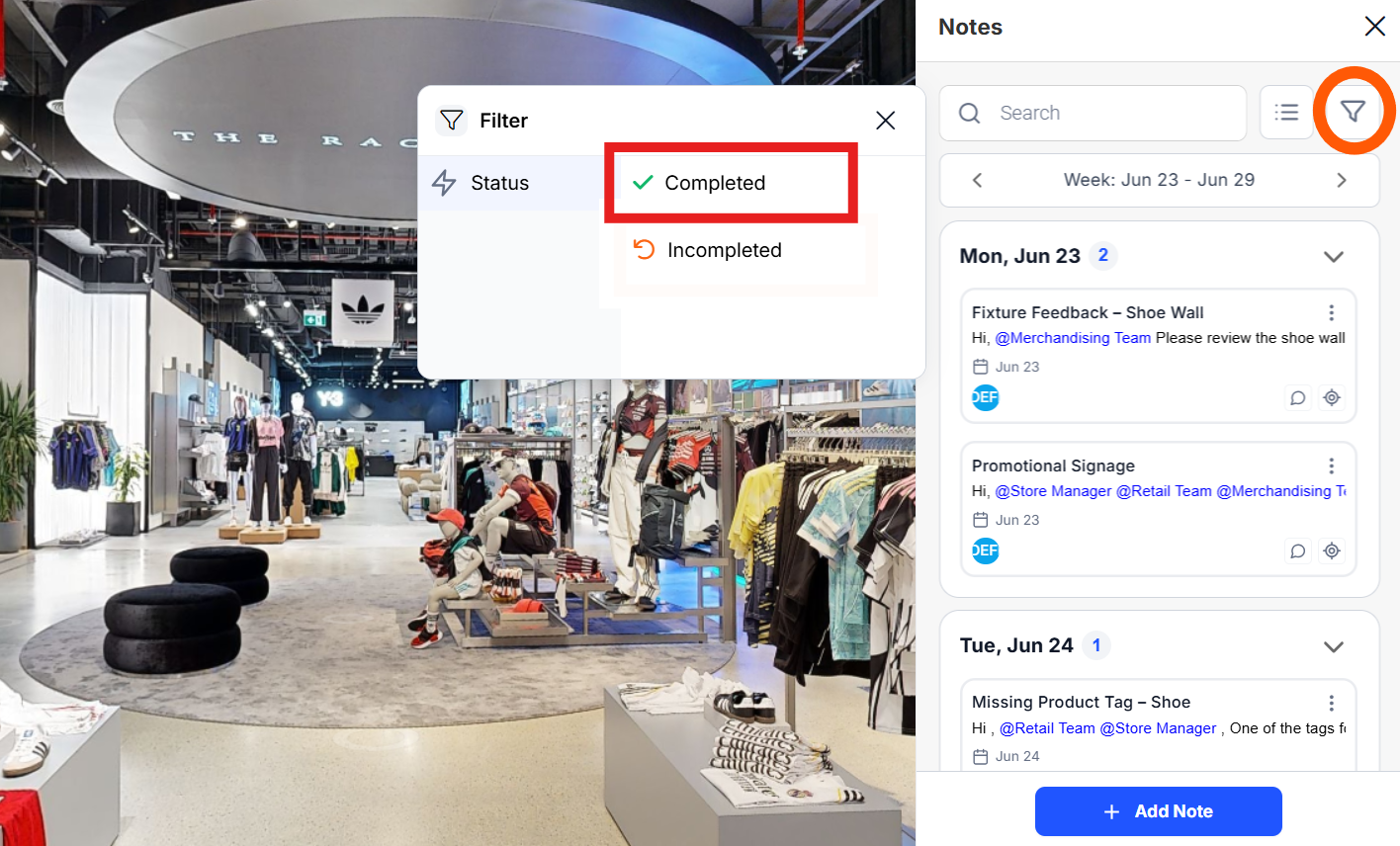
  • The archived notes can be found,Ā  if the filter is set toĀ ā€œCompleted ’

Replying to Notes : #

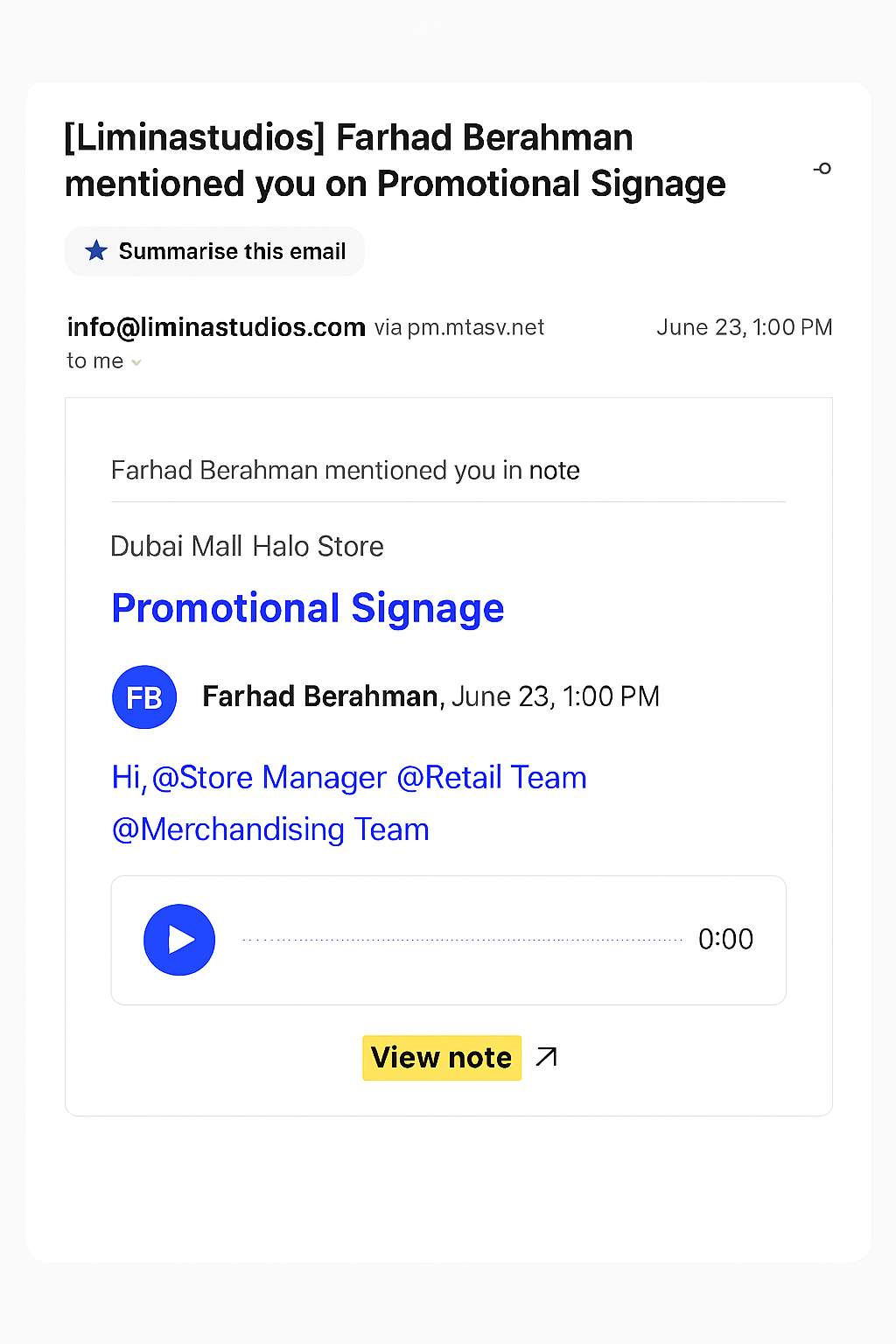
  • Ā You will get email notification like thisĀ  when someone mentions you in a note. Click onĀ view note , and it takes you to that particular note.
    ChatGPT Image Jun 23, 2025, 09_04_28 PM
  • Or, Go to the tour link. Login as collaborator using the Emai Id and Password.
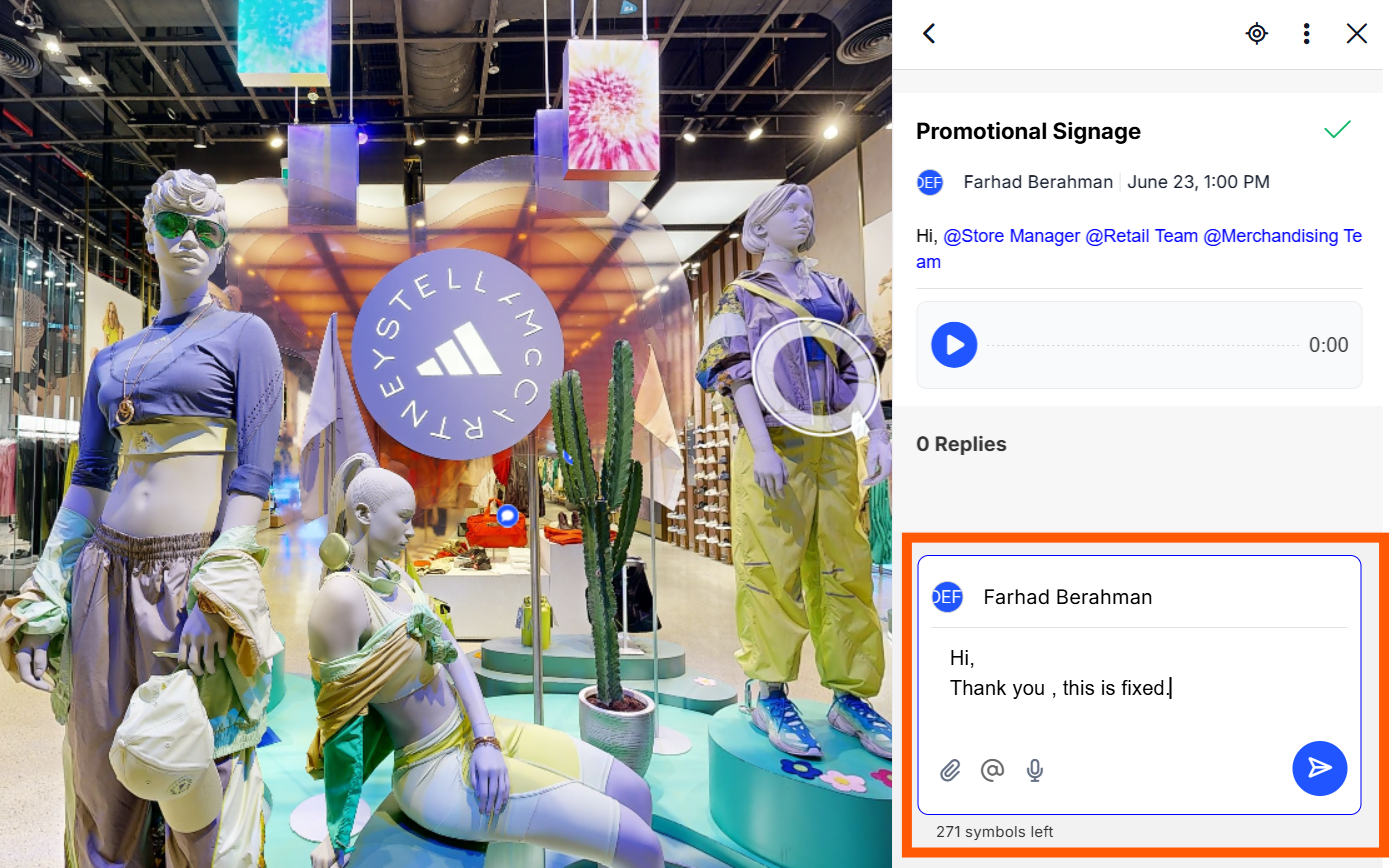
  • Click on the note’s icon, Click open the note that you want to reply to.
  • Write down yourĀ  reply and click on send.
  • You can add attachments, mention collaborators and add a voice message as well .Ā 

šŸ””Ā Make sure to tag collaborators every time if you want them to getĀ notified .

Delete a Note : #

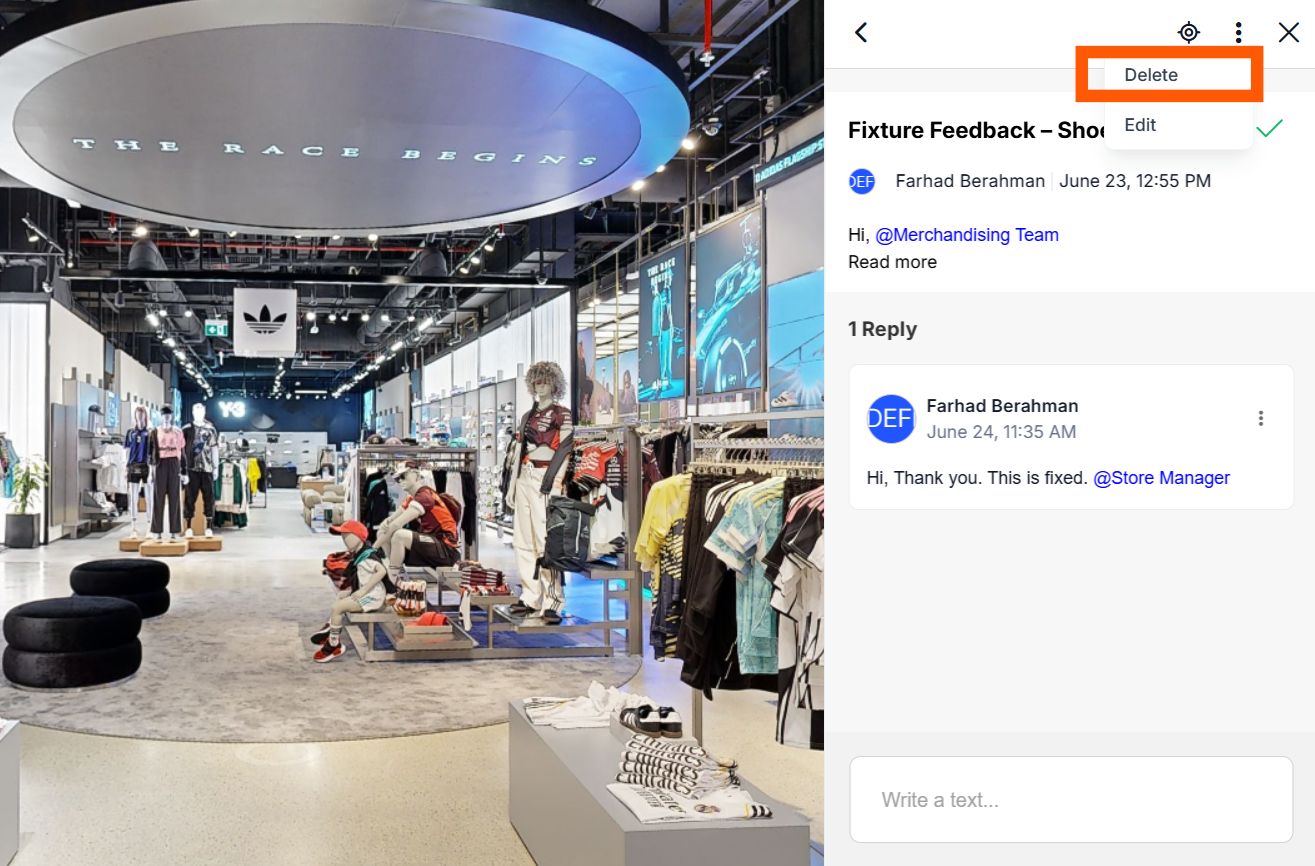
  • Open the note, Click on 3 dots and select Delete.
Support #

If you have any issues or questions, please reach out via Live Chat or email us at admin@liminastudios.com.

How to add Notes in an adidas Virtual Tour?How to add Notes in an adidas Virtual Tour?

Powered by BetterDocs

Table of Contents
  • šŸ› ļø Managing Notes
  • Locating Notes :
  • Editing Position:
  • Editing Note Content :
  • Mark as Completed :
  • Replying to Notes :
  • Delete a Note :
  • Support
  • info@liminastudios.com
  • admin@liminastudios.com
  • +971 52 476 4537
Facebook Globe Instagram Phone-alt Linkedin X-twitter Youtube

Copyright Ā© 2025, liminastudios.com